
Understand the researcher dashboard
A tour of the dashboard: sidebar navigation, workspace switcher, search, and notifications.
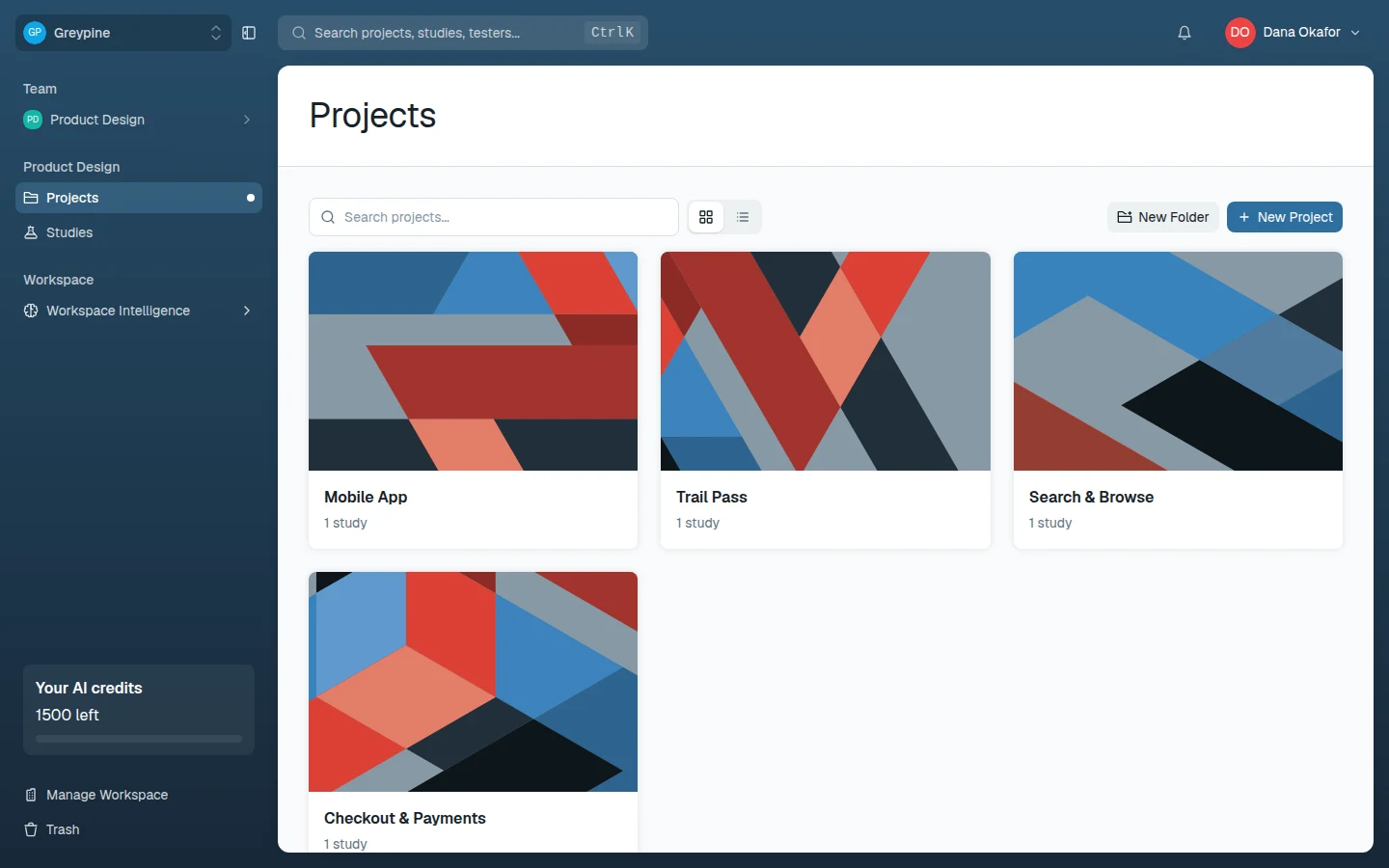
After logging in you land on the researcher dashboard, opened at Projects (testers land on My Tests instead). Everything you do in CustomTester — projects, studies, results, workspace settings — starts here.
The sidebar
The left sidebar is the main navigation. It shows your workspace at the top — and, if your workspace uses teams, a Team switcher below it — then the areas of the app:
- Projects — your research projects and folders. See Projects and folders.
- Studies — every study you can see, across projects.
- My Tests — studies you are taking as a tester; shown when your account or seat includes testing. See The tester experience.
- Workspace Intelligence — audiences, competitors, evidence, and products, on team plans that include it. See Workspace Intelligence.
- Manage Workspace — billing, members, teams, settings, and the audit log. Shown to workspace admins and in your personal workspace.
- Trash — deleted projects and studies that can still be restored.
The footer also shows Your AI credits — how many you have left this period. You can pin the projects, folders, and studies you return to; they stay at hand in the Pinned section of the sidebar.
Workspace switcher
If you belong to more than one workspace, the switcher at the top of the sidebar moves you between them. Each workspace has its own projects, members, and plan — nothing is shared across workspaces, including your role: you can be an admin in one and a tester in another.
Search
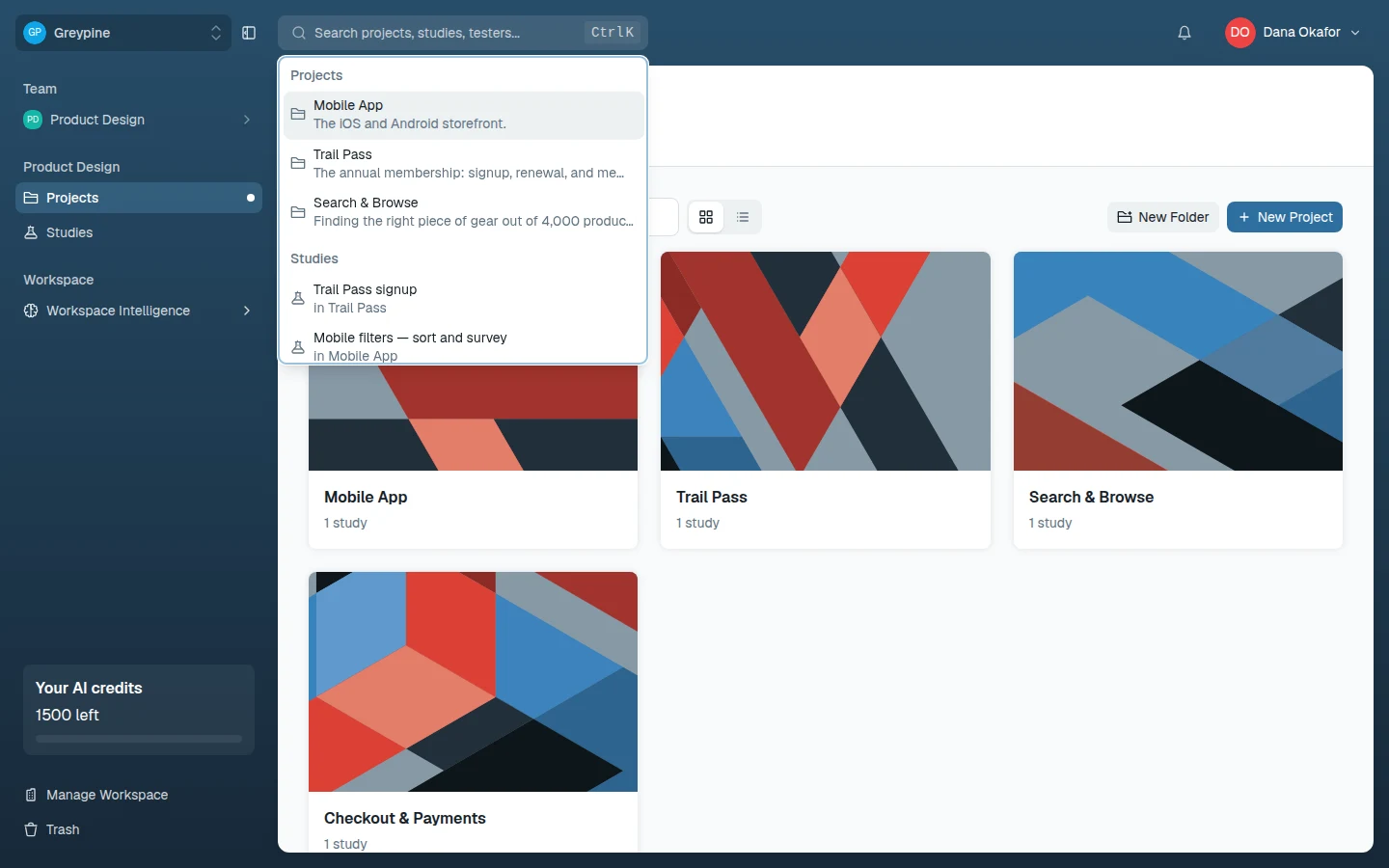
The search in the header finds projects and studies by name. Click the search field or press Ctrl+K (⌘K on a Mac) and start typing — results are grouped into Projects and Studies, and selecting one jumps straight there.
Notifications
The bell in the header collects activity that concerns you: completed test sessions, new tests assigned to you, being added to a workspace, new insights, and AI results that are ready. Unread notifications are marked until you open them, and you can mark everything read at once. Email notifications are configured separately, on the Notifications tab of Settings.
Light and dark theme
Pick Light, Dark, or System under Theme in the user menu; the app remembers your choice. The one exception is the tester experience, which always renders light so every participant sees the same thing — see The tester experience.
Related docs
- Create an account and log in
Sign up for CustomTester, pick a plan, and sign in — including two-factor, passkeys, and switching between multiple accounts.
- Projects and folders
Create projects, group them into folders, control who can see them, and clean up with trash and restore.
- Create and configure a study
Set up a new study inside a project, name it, and arrange its blocks in the study builder.