
The tester experience
Study links, My Tests, the welcome and setup screens, recording permissions, completing activities, and finishing a session.
This guide walks through a study from the tester's side. If you are a researcher, it is also the fastest way to understand what your participants will experience — and Preview shows you exactly this flow with your own study.
Find your tests
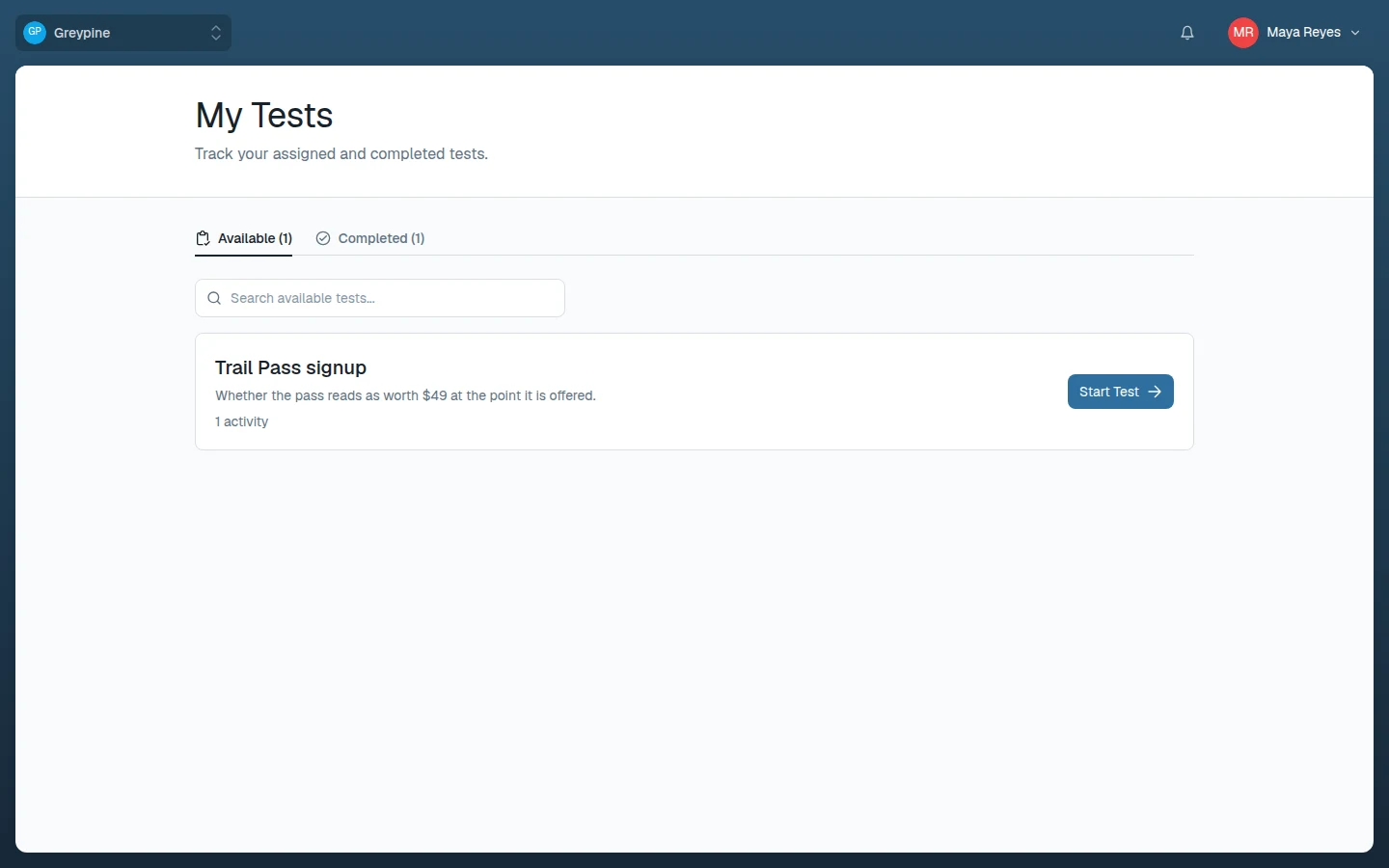
If a researcher invites you by email, you get an email when the study goes live, plus a New test assigned notification if you already have an account. The study waits under My Tests: log in with the address the invitation was sent to (or create an account with it) and choose Start Test.
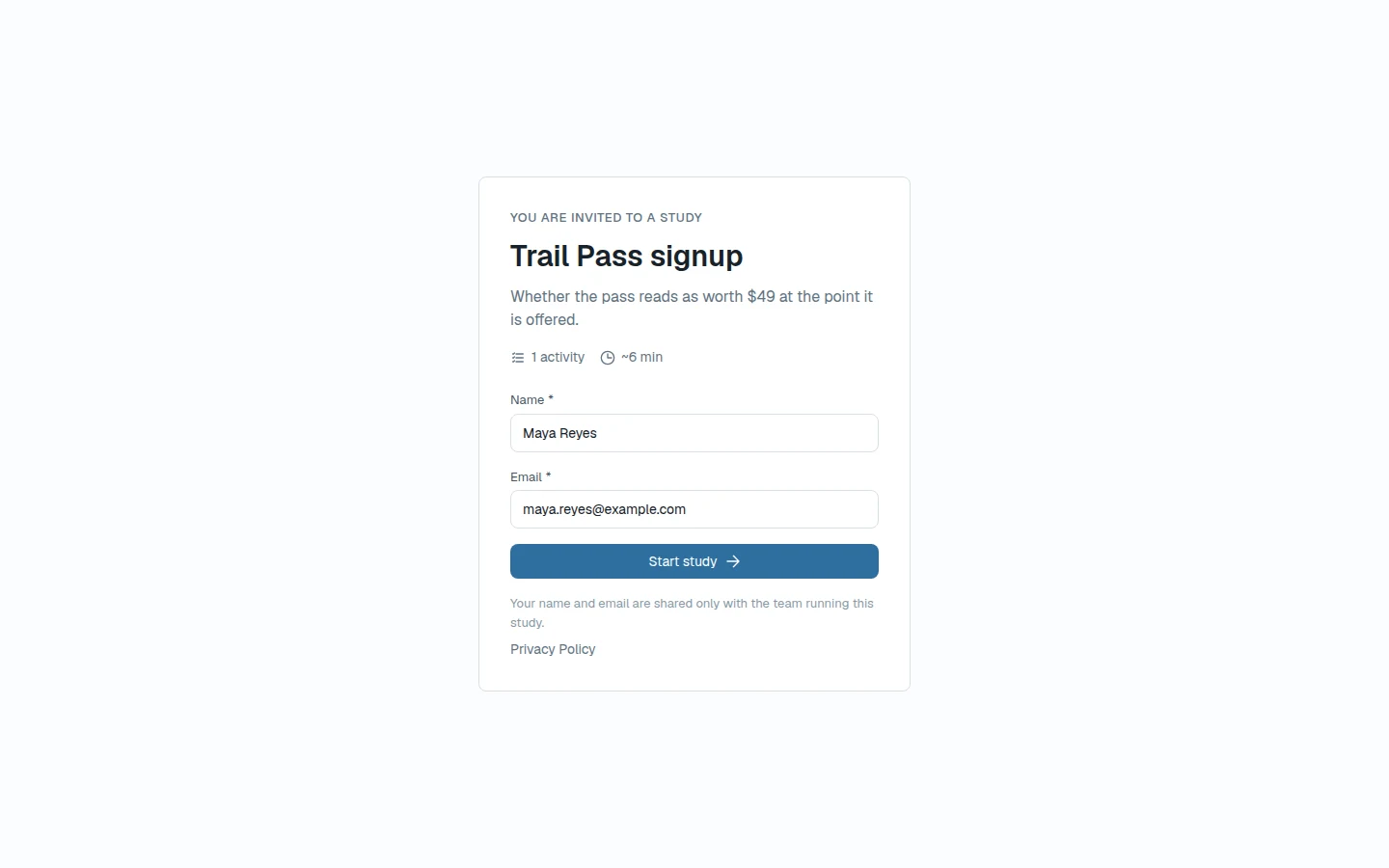
A study can also start from a public link the researcher shares. The link opens a start page with the study's title, number of activities, and estimated duration; enter your name and email (filled in for you if you're logged in), plus the study password if it has one, and choose Start study. Depending on the workspace, you may need to log in first.
Tests you've been invited to, and tests you've started while logged in, appear under My Tests. The Available tab lists tests you haven't finished — Start Test opens one in its own window. Finished tests move to the Completed tab with the date, duration, and your rating.
If a link shows "This study has not started", "This study has ended", or "This link does not work", the study isn't open to you right now — contact the person who sent it. The researcher-side checklist is in Troubleshooting.
Welcome and setup
A session opens with the study's welcome screen, followed by a one-time setup step if any activity is recorded. The tester experience always uses a light theme and keeps navigation minimal so nothing distracts from the tasks; the header shows a timer, a Full Screen toggle, and Exit Study.
Recording permissions
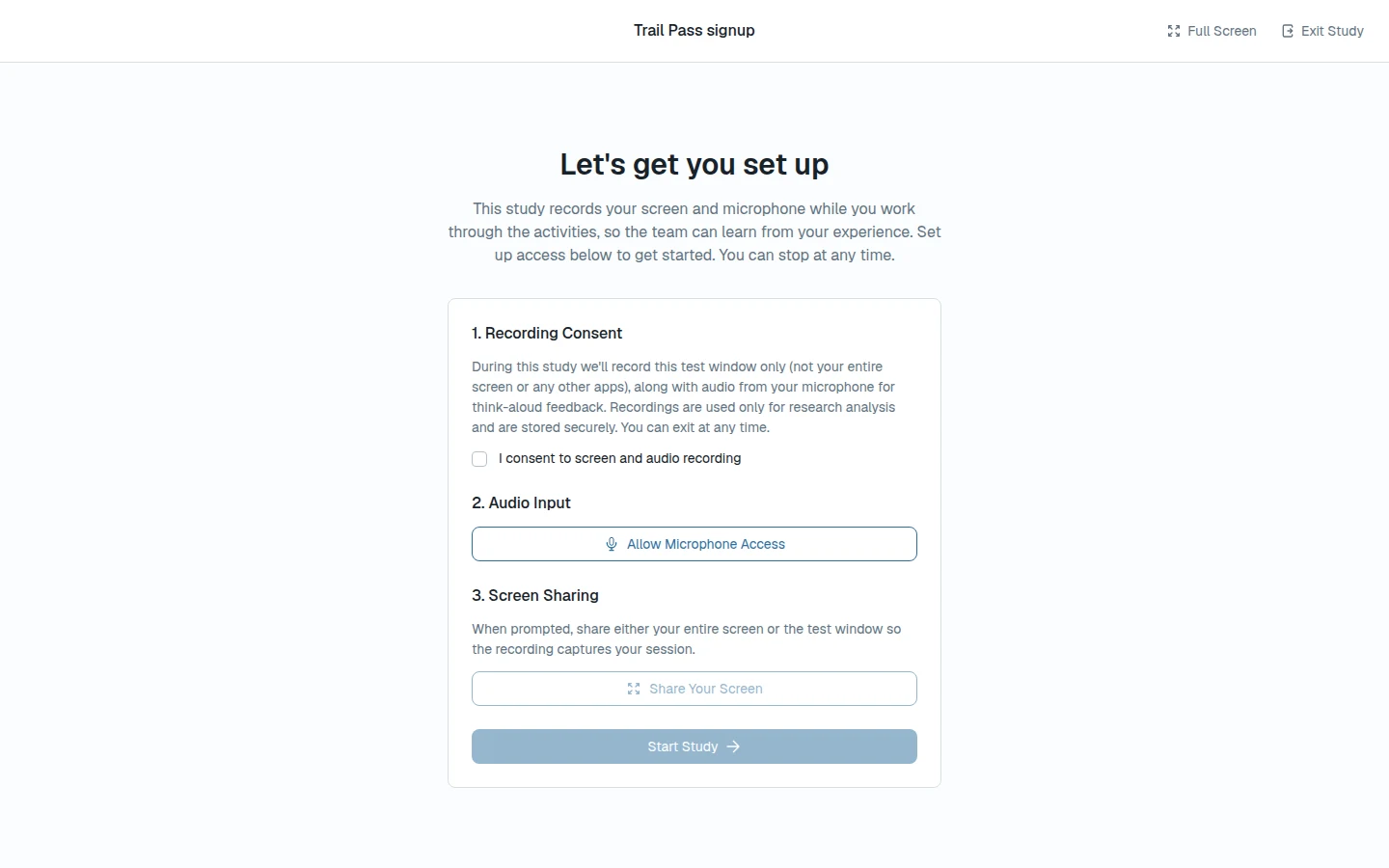
If the study includes a usability test, it records your screen and microphone. Setup asks for everything once, up front:
- Recording Consent — tick the consent checkbox.
- Audio Input — choose Allow Microphone Access, pick your microphone, and speak to check the level meter.
- Screen Sharing — choose Share Your Screen and share either your entire screen or the test window.
Start Study stays disabled until all three are done; if a prompt fails, fix the permission and choose Try again. Your screen and microphone stay shared for the session, but recording runs only during usability tests: each one opens with "This activity is recorded" and starts when you choose Start & Record. Other activities, such as surveys and card sorts, are never recorded.
Working through blocks
Activities appear one at a time in the order the researcher set. A step counter shows where you are. Usability tasks show their instruction alongside the prototype or website; card sorts and surveys are self-contained. Required questions must be answered before you can continue; everything else can be skipped.
Finishing
Each recorded activity uploads its recording when you finish it. After the last activity, the study's thank-you screen confirms the session is complete — at that point your responses are submitted, even if you close the window. You can rate the study, then choose Close Study; it waits while a recording is still saving. Logged-in testers return to My Tests, where the test is now under Completed.
Related docs
- Preview, launch, and share studies
Try your study as a tester, launch it when it's ready, invite testers, and end it when you have enough sessions.
- Review results, evidence, and recordings
Where session results live, how to read per-block responses, watch recordings, capture evidence, and export your results.
- Troubleshooting and FAQ
Fixes for the most common problems: login issues, recording permissions, missing studies, and results that don't appear.