
Review results, evidence, and recordings
Where session results live, how to read per-block responses, watch recordings, capture evidence, and export your results.
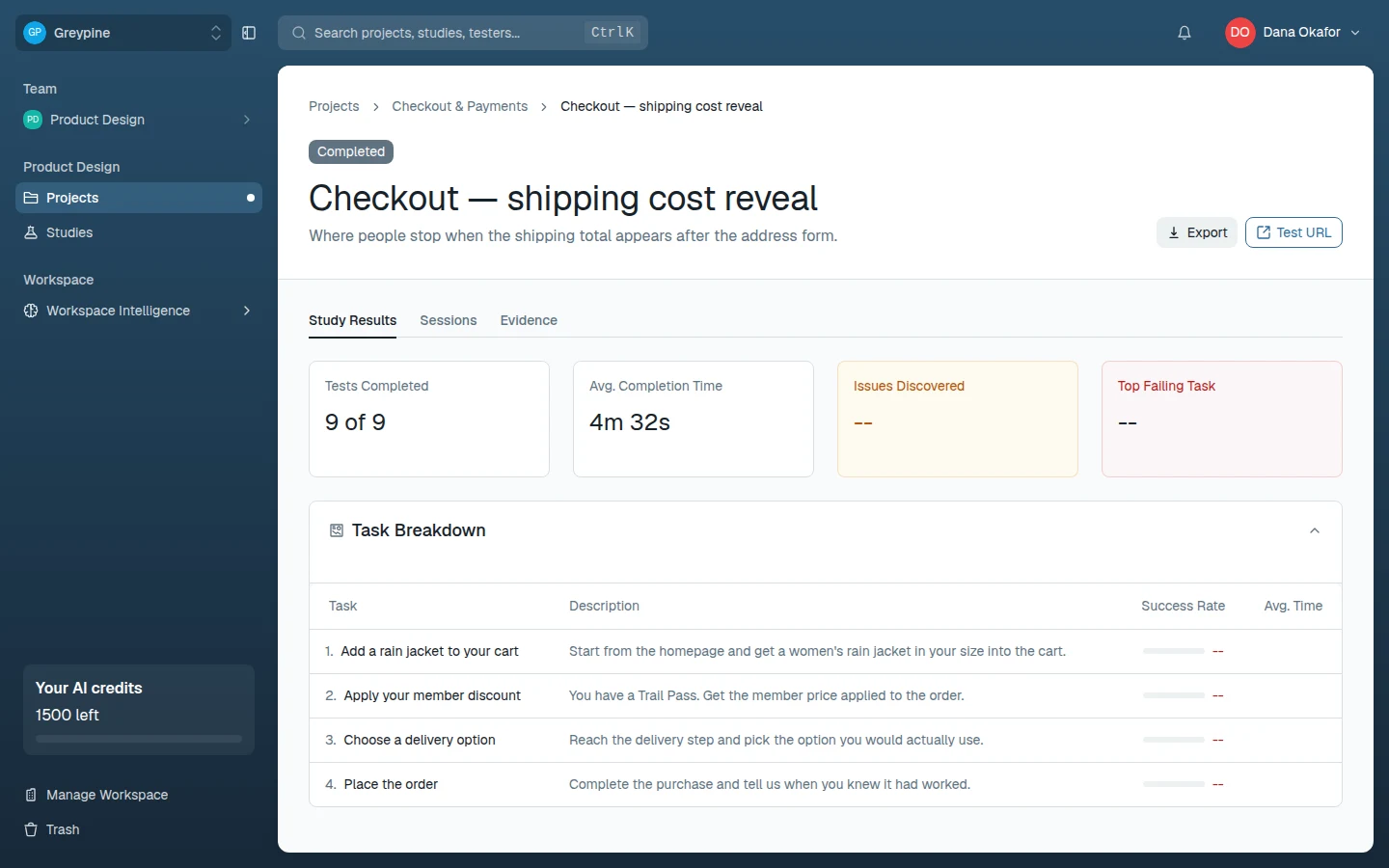
Every completed session shows up on the study's results page as soon as the tester finishes. Results are organized in three tabs: Study Results (every tester's answers, aggregated by block), Sessions (everything one tester did), and Evidence (what the study taught you).
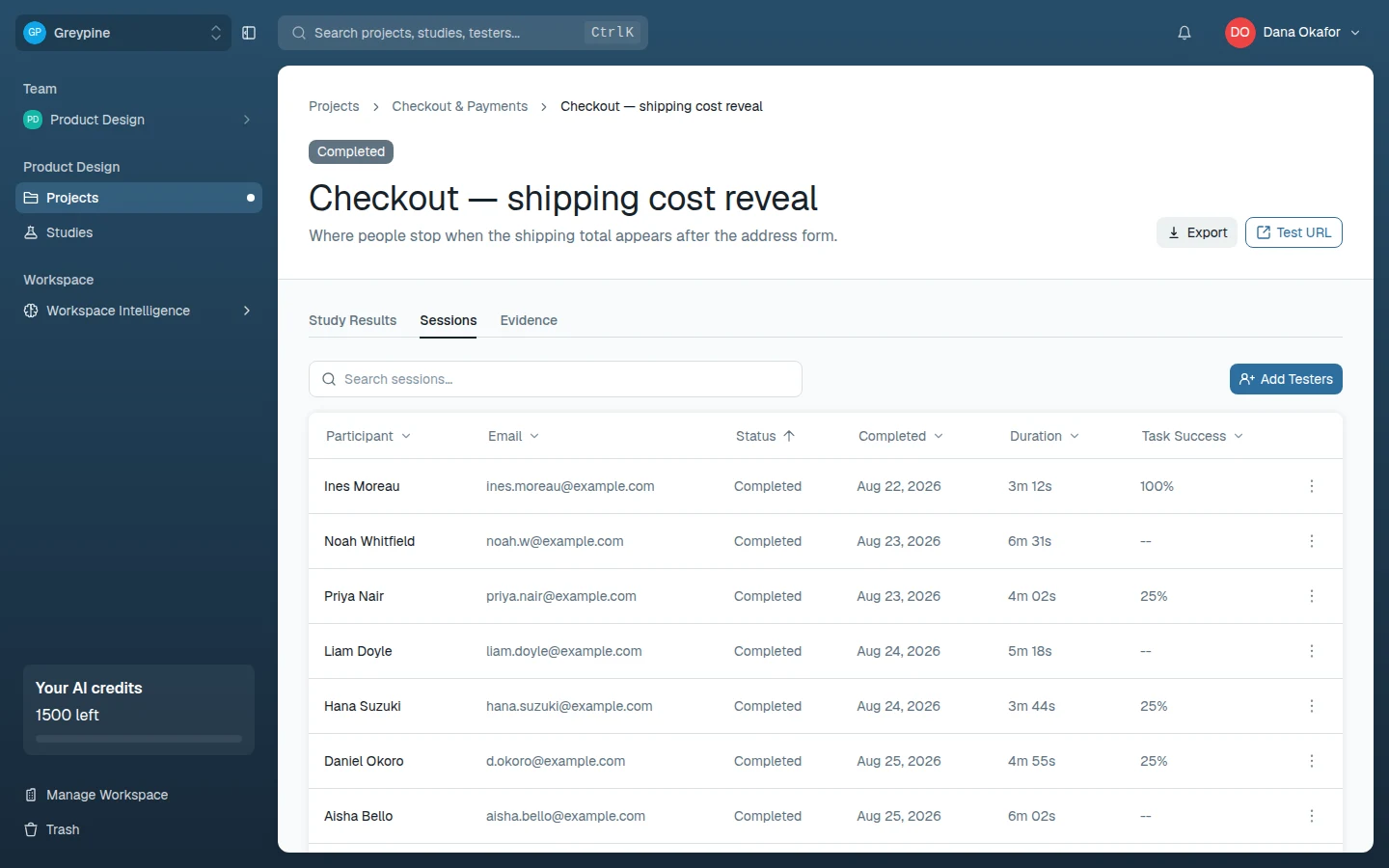
Session view
On the Sessions tab, open a session to walk through one tester's run: pick a block to see its responses, task outcomes, timings, and any recordings, alongside the session details (duration, task success, device, browser), an AI Summary, and the Issues the analysis found, rated Critical, Moderate, or Minor. This is the view for understanding an individual's experience end to end.
Sessions carry a status: Completed sessions reached the thank-you screen; In Progress means the tester can still resume from My Tests; Invited testers haven't started yet. Only completed sessions tell a full story — treat in-progress ones as not-yet-data.
Block view
The Study Results tab opens with a summary — tests completed, average completion time, issues discovered, the top failing task — and a task breakdown. Below it, pick Overview or any block to aggregate across testers: task success rates for usability tests, category agreement for card sorts, and answer distributions for surveys. Use it to spot patterns rather than anecdotes.
Recordings
Recordings are captured per usability block, so playback starts exactly where the relevant work happened — no scrubbing through a monolithic session video. Each recording combines the tester's screen and microphone; markers on the progress bar and the Task Timeline show where each task started, and selecting a task jumps to it.
Recorded blocks are transcribed and analyzed automatically, which spends the workspace's AI credits based on the recording's length; the Transcript is searchable. If the workspace is out of credits, the recording is kept but not transcribed.
If a session shows no recording for a block that should have one, the tester's upload was likely interrupted. See Troubleshooting.
Evidence
Evidence captures what you learned. After a study is completed, CustomTester generates evidence from the analyzed sessions automatically (AI studies don't generate evidence); on the Evidence tab you can also choose Add evidence to write your own — one clear, durable statement works best. Generated and user-defined items are badged so you can tell them apart. Add to workspace evidence promotes an item into Workspace Intelligence, where it also feeds the AI features' context.
Export results
Once a study has ended, Export downloads its results:
- Reports — Markdown (.md), Word (.docx), or Export for AI…, which packages the research for an AI assistant such as Claude or ChatGPT with an optional suggested task.
- Raw data — an Excel workbook (.xlsx) or a CSV package (.zip) with datasets such as task results, survey responses, open text, and card placements.
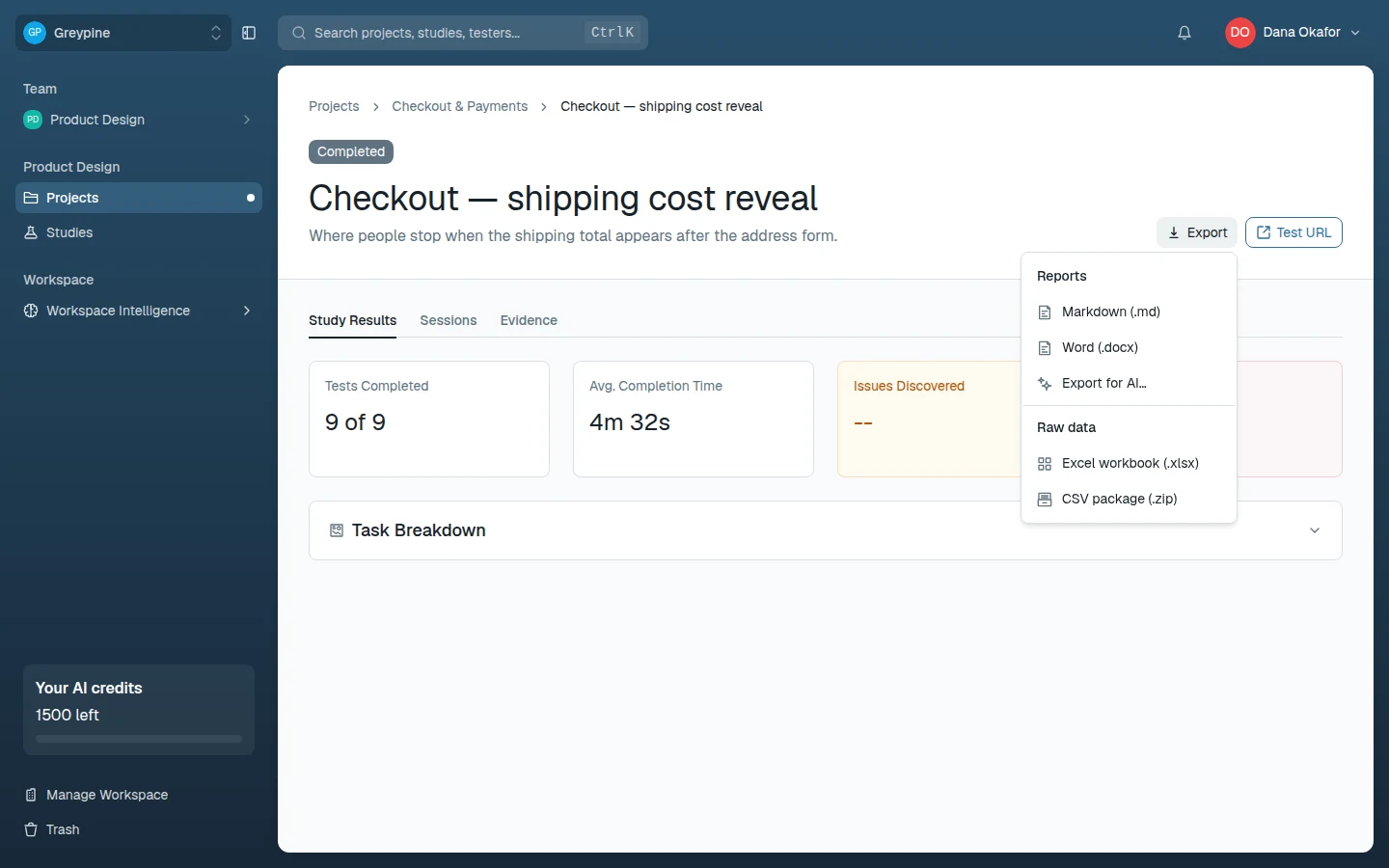
Testers appear as P1, P2, and so on — names and email addresses are never exported, and recordings are referenced by ID rather than included. A whole project can be exported as a report once none of its studies is live.
Related docs
- Preview, launch, and share studies
Try your study as a tester, launch it when it's ready, invite testers, and end it when you have enough sessions.
- The tester experience
Study links, My Tests, the welcome and setup screens, recording permissions, completing activities, and finishing a session.
- Workspace Intelligence and audiences
Give the AI features durable context about your product, competitors, target audiences, and research evidence.