
Create and configure a study
Set up a new study inside a project, name it, and arrange its blocks in the study builder.
A study is what testers actually take: an ordered sequence of blocks such as usability tests, card sorts, and surveys. Studies usually live inside projects, and one project can hold as many studies as you need.
Create a study
- Open the project the study belongs to and choose New Study. (You can also start from New Study on the Studies page and pick a project there, or No project.)
- Under Standard Study, pick a starting point — From scratch or one of the study templates — and choose Create. (The AI Studies options on the same page create an AI study instead.)
- The study opens in the builder as a draft named "New Study".
- Rename it — click the title at the top of the builder, or use Study name under Study Settings. Testers see this name, so keep it neutral (avoid leading titles like "Checkout redesign test" if that would bias behavior).
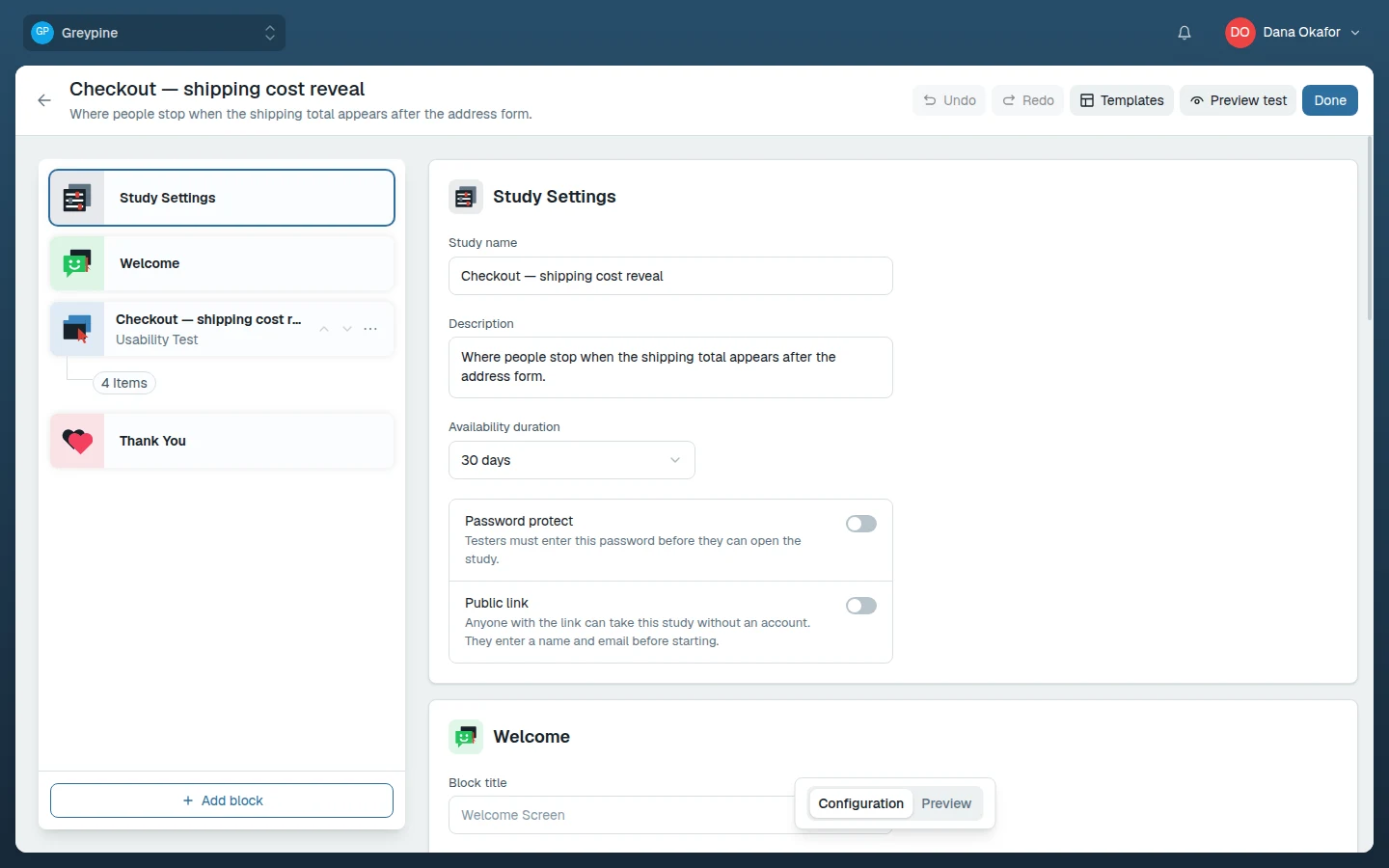
The study builder
The builder's left rail shows Study Settings, the Welcome screen, the study's blocks in the order testers will see them, and the Thank You screen. Select an item to edit it in the configuration panel; drag blocks in the rail to reorder them; use Add block between blocks (or Add block below in a block's menu) to insert a new one at that position. The block menu also has Duplicate and Delete, and the toolbar has Undo and Redo.
The Add block dialog offers Study blocks — Usability Test, Card Sort, and Survey — and Individual questions, which add a single question block.
Each block type has its own settings — a usability test points at a prototype or website and lists tasks, a card sort defines cards and categories, a survey holds its questions. See Use study blocks for the full reference of each type.
Saving
Changes in the builder save automatically, a moment after you stop typing. The save indicator next to the toolbar shows Saving... and then Saved; if it reads Unsaved changes, your last edit did not reach the server — usually a dropped connection. Keep the tab open and make another small edit to retry, and see configuration errors if it persists.
Study settings
Select Study Settings at the top of the rail for the study-level options:
- Study name and Description.
- Password protect — testers must enter the password before they can open the study.
- Public link — anyone with the link can take the study without an account; they enter a name and email before starting. Once enabled, the Shareable link appears here to copy. See Preview, launch, and share.
- Response limit, Close date, and Availability duration — when the public link stops accepting responses. The study completes automatically once the limit or date is reached; Availability duration is a shortcut that sets the close date that many days out.
Two more things sit outside this panel:
- Welcome and thank-you screens — the first and last thing a tester sees. Both are editable; see Welcome and thank-you screens.
- Recording — usability test blocks record the tester's screen and microphone. There's nothing to configure; testers grant permissions once up front.
In this section
- Start from a template
Prebuilt studies for the common jobs: website usability, prototype validation, first impressions, card sorts, and more.
- Welcome and thank-you screens
The first and last thing testers see: what each screen is for and how to write them.
- Configuration errors reference
What stops a study from launching and how to fix it — plus save failures and recording setup.
Related docs
- Use study blocks
The building blocks of a study: usability tests, card sorts, surveys, and question blocks — and when to use each.
- Preview, launch, and share studies
Try your study as a tester, launch it when it's ready, invite testers, and end it when you have enough sessions.
- Projects and folders
Create projects, group them into folders, control who can see them, and clean up with trash and restore.