
Projects and folders
Create projects, group them into folders, control who can see them, and clean up with trash and restore.
A project is the container for related research: its studies, participants, and results live together. Folders sit above projects and let you group them — by product area, by quarter, by client, whatever fits your team.
Create a project
- Open Projects in the sidebar. To create the project inside a folder, open that folder first.
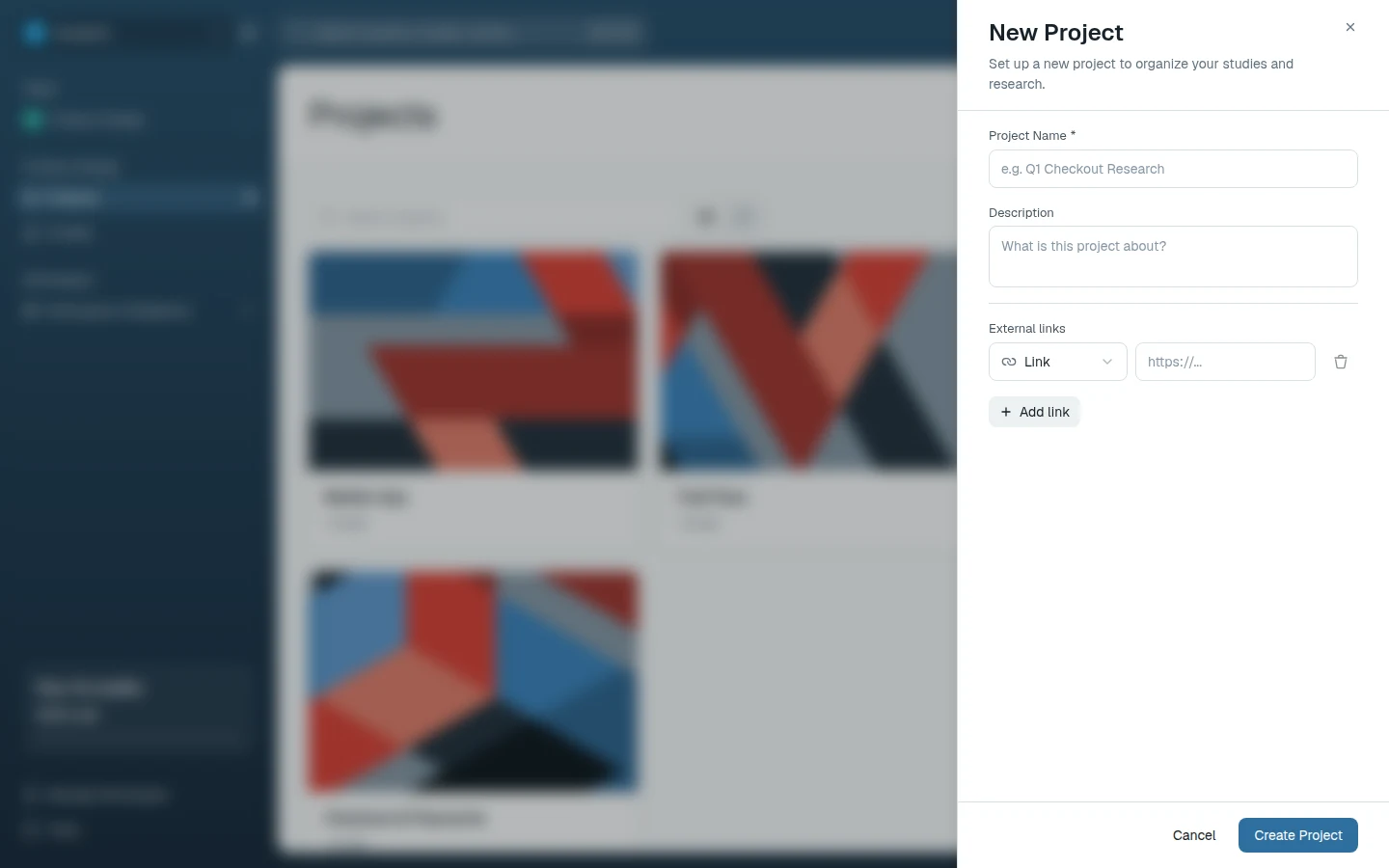
- Choose New Project.
- Give it a name and, optionally, a description and external links (Figma, Jira, Notion, Google Drive, and so on).
- Choose Create Project. It's created in the team currently selected in the sidebar.
To add a cover image later, open Edit Project — you can upload your own or pick from covers collected from the project's studies, Figma files, and websites.
How many projects a workspace can hold depends on the plan — personal plans cap it, team plans don't. If New Project is blocked, see Plan limits.
Folders
Folders are one level deep and exist for organization. Create one with New Folder on the Projects page, and use Move Project to put a project into a folder, take it out (Uncategorized), or move it to another team.
A folder has its own sharing settings, but they cover the folder only — projects inside don't inherit them. Projects inherit access from their team instead, so moving a project to another team changes who can see it; check its sharing after a move if the project was sensitive.
Deleting a folder asks whether to Keep projects (they become uncategorized) or Move all to trash.
Who can see a project
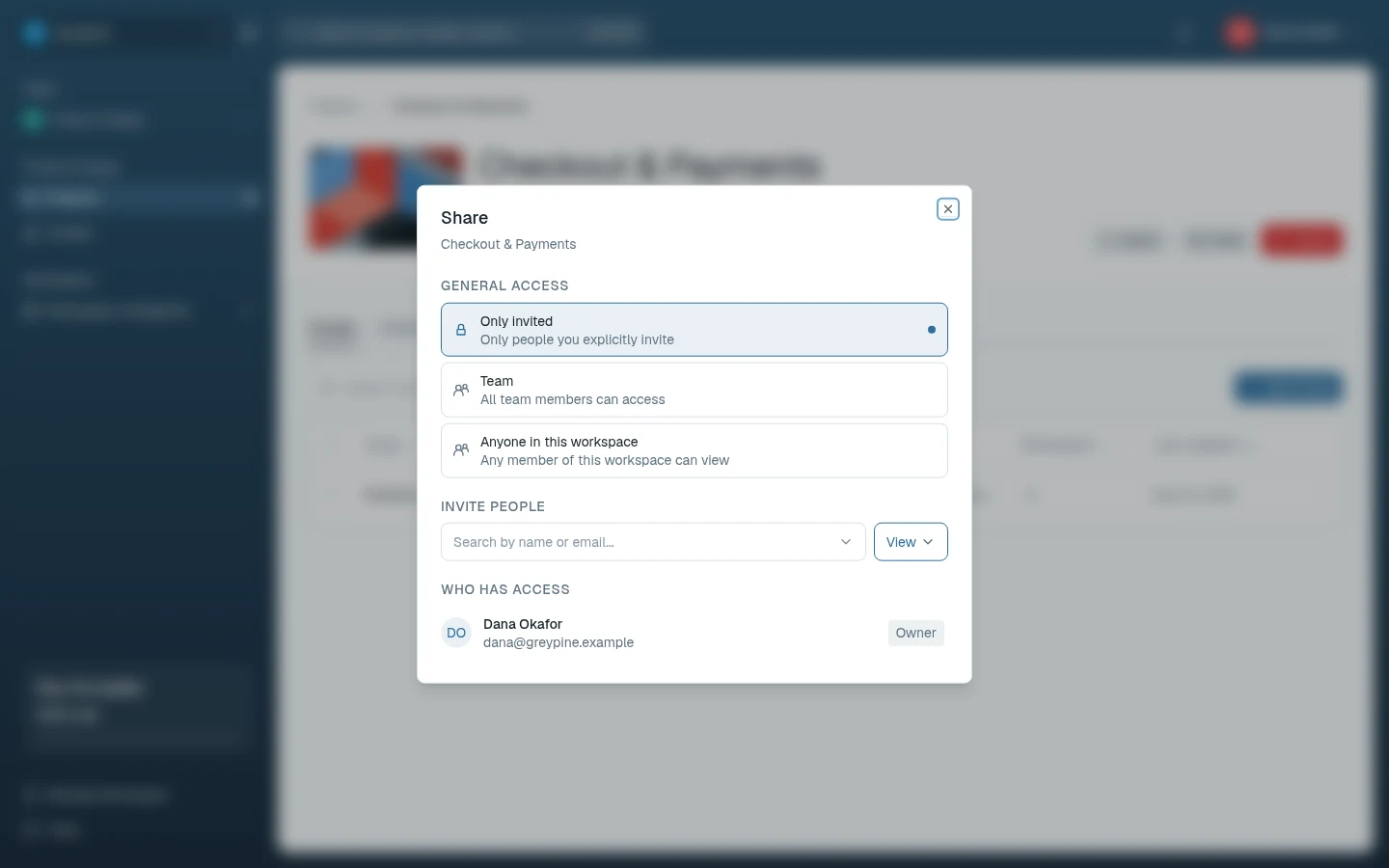
Every project has a General access setting in its share dialog:
- Only invited — only people you explicitly invite.
- Team — all members of the project's team can access it.
- Anyone in this workspace — any workspace member can view it.
Under Invite people you can add individual members with one of two roles:
- Edit — can change studies and run research.
- View — can read results and insights but not modify anything.
A person's direct invitation takes precedence over broader access. Seats still cap what anyone can do: Team Members can only view, even with an Edit grant, and workspace admins can open everything in their workspace.
Inside a project
A project page has these tabs:
- Studies — the project's studies; start one with New Study.
- Evidence — learnings generated automatically after a study is completed, plus any you add yourself.
- Brief — the project's product requirement document (typed or uploaded) and its goals, which ground AI features for the project.
- Project Context — Workspace Intelligence items linked to the project, on team plans that include it.
Trash and restore
Deleting a project moves it to the Trash rather than removing it immediately. From Trash you can Restore it — with its studies and results intact — or Delete Forever. Projects in the Trash don't count against your plan's project limit. Projects and studies left in the Trash are permanently deleted automatically 30 days after they were deleted.
Related docs
- Understand the researcher dashboard
A tour of the dashboard: sidebar navigation, workspace switcher, search, and notifications.
- Create and configure a study
Set up a new study inside a project, name it, and arrange its blocks in the study builder.
- Workspace, teams, members, and settings
Structure your workspace with teams, manage member roles and seats, and review the audit log.