
AI studies
Run AI-powered evaluations of your screens: audience studies simulate your target users, expert studies apply UX and accessibility review methods.
An AI study evaluates a set of screens without recruiting human testers. You pick the screens, choose which evaluations to run, and launch — the AI works through every selected block and returns structured findings in minutes. AI studies complement human testing: use them for fast, cheap early passes and to prepare sharper questions for the sessions you run with real people.
Two modes
Every AI study is one of two modes, chosen when you create it:
| Mode | Perspective | Blocks |
|---|---|---|
| Audience study | Simulates your target users, based on audiences from Workspace Intelligence | Audience blocks |
| Expert study | Applies professional review methods — UX review, accessibility, heuristics | Expert blocks |
Audience studies require at least one audience so the AI has a user model to react from. Expert studies need no audience — the method itself is the perspective.
Create an AI study
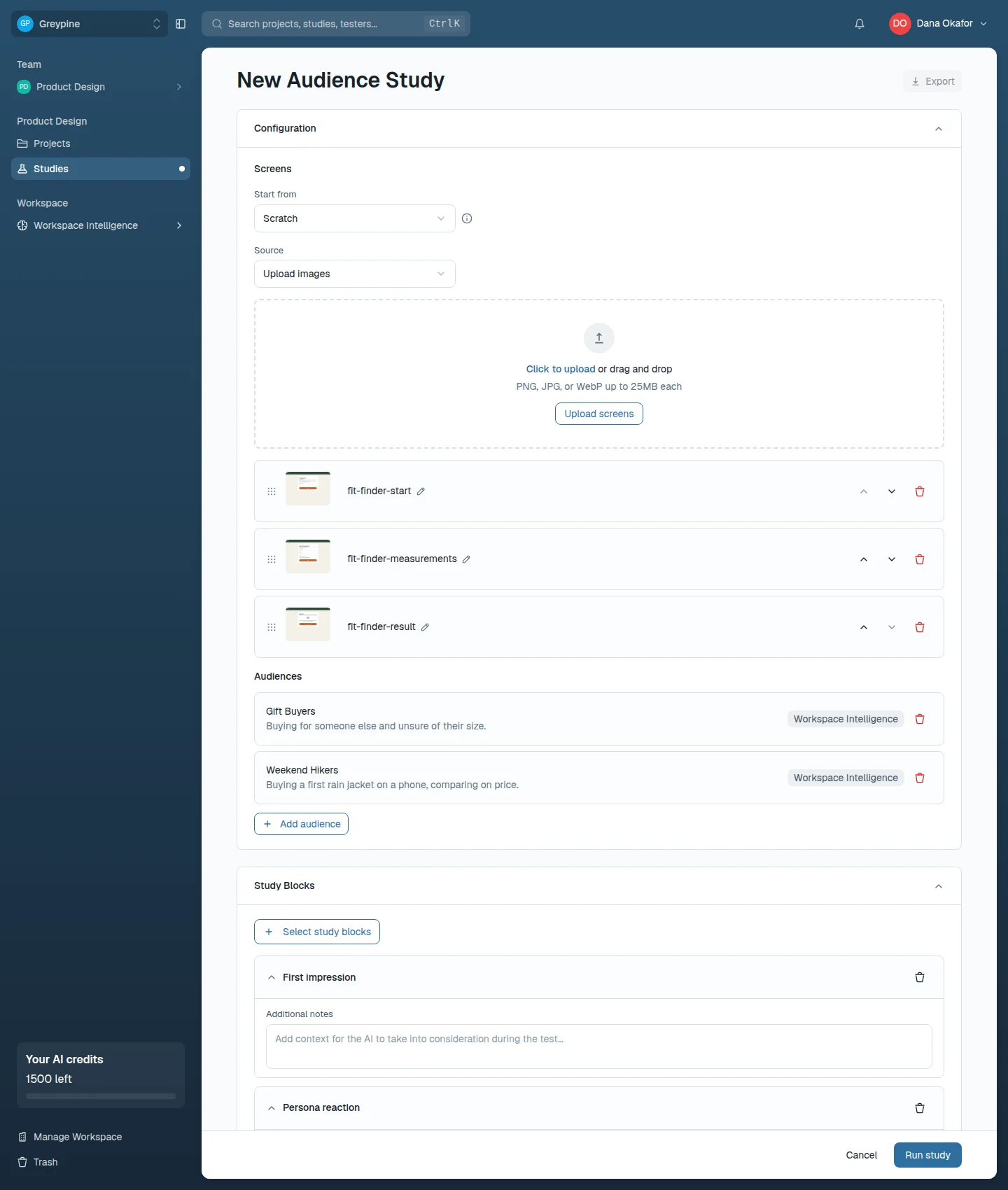
- Choose New Study, pick Audience or Expert under AI Studies, and select Create (AI studies count against the same study limit as regular studies).
- Add the screens to evaluate — pick a Source (Upload images, Figma snapshot, or Website capture), or use Start from to copy the screens from another AI study in the project; see Screens and Figma import.
- For audience studies, choose Add audience to pick the audiences to simulate — from the project's context, from Workspace Intelligence, or by uploading research files to draft a study-only audience.
- Choose Select study blocks and fill in each block's configuration. Every block accepts Additional notes where you can point the AI at what you care about.
- Adjust the review settings if the defaults don't fit.
- Under Advanced, Use project context (on by default for studies in a project) includes the project's Workspace Intelligence — goals, PRDs, and attached intelligence items — so findings reflect what you're actually building.
- Select Run study. The run spends AI credits and is processed in the background; see Runs and results.
Review settings
Two sliders shape what the AI reports and how it words it:
- Review depth — from Exhaustive (every issue, including minor polish) through Thorough, Balanced, and Focused to Critical only (only blockers that stop or derail a core task).
- Feedback style — from Expert (cites standards, criteria and measurements) through Technical, Balanced, and Simplified to Plain language (no jargon: what people run into and what to change).
Both start at Balanced; set the feedback style new studies start with under Settings → AI studies. Once a study has a completed run its review settings are locked.
Before launch
The editor blocks the run until the study is runnable:
- at least one screen,
- at least one block selected,
- at least one audience (audience studies only),
- every selected block's required fields filled — e.g. a task walkthrough needs its task or goal, a first click needs its task question, a design comparison needs a goal and two screens. The block panel opens automatically on the fields that are missing.
The cost of a run grows with the number of blocks, screens, and audiences. If the workspace doesn't have enough AI credits left, the run doesn't start and a dialog explains your options.
In this section
- Audience study blocks
The five audience-mode evaluations: first impression, persona reaction, task walkthrough, first click, and design comparison.
- Expert study blocks
The five expert-mode evaluations: UX review, accessibility review, designer task walkthrough, heuristic evaluation, and design comparison.
- Screens and Figma import
Get screens into an AI study: image uploads, Figma frame import, website captures, and reuse from another AI study.
- AI study runs and results
What happens after launch: run statuses, canceling and retrying, how to read findings and per-audience results, and exporting them.
Related docs
- Create and configure a study
Set up a new study inside a project, name it, and arrange its blocks in the study builder.
- Workspace Intelligence and audiences
Give the AI features durable context about your product, competitors, target audiences, and research evidence.
- Review results, evidence, and recordings
Where session results live, how to read per-block responses, watch recordings, capture evidence, and export your results.