
AI study runs and results
What happens after launch: run statuses, canceling and retrying, how to read findings and per-audience results, and exporting them.
Selecting Run study creates a run: one launch executes every selected block and aggregates their output. Runs are processed in the background — while one is in flight the study shows a progress screen where you can Cancel study (the run is discarded, its AI credits are refunded, and you're back in the editor) or Leave & keep running and come back later.
Run statuses
| Status | Meaning |
|---|---|
| Queued | Accepted, waiting for a worker |
| Processing | Blocks are executing |
| Completed | Every block finished; results are ready |
| Failed | At least one block failed — partial results may exist for the blocks that succeeded |
| Not connected | The blocks' analysis isn't enabled on the platform yet — your screens and settings are saved, but no results were generated |
The page polls while a run is in flight and toasts when it reaches a terminal state. A failed run shows a Retry button below the editor — retrying re-executes the run (and spends credits again), it doesn't duplicate the study. If you changed the review settings since the failed run, select Run study instead so the new settings apply.
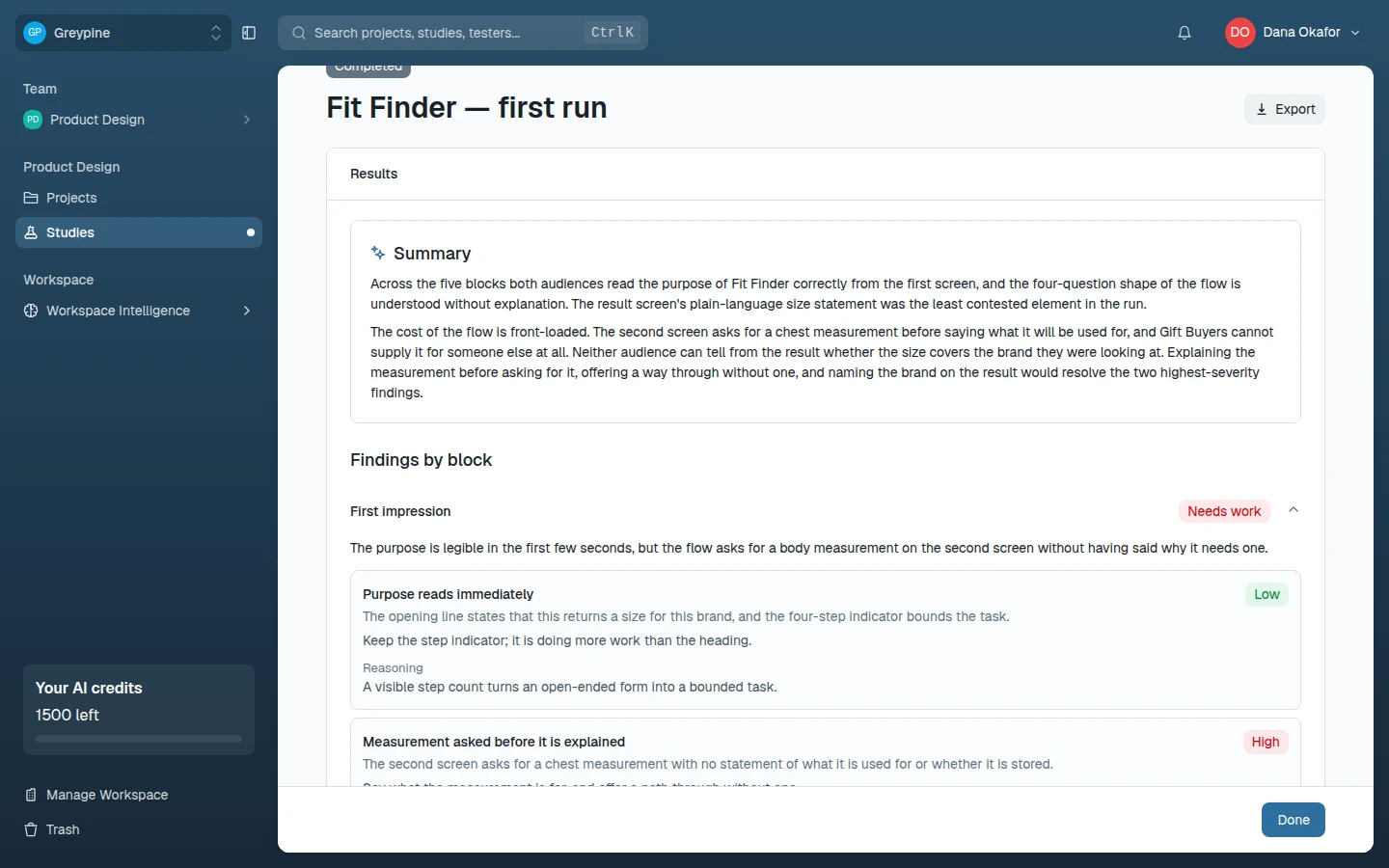
Once a run completes, the study is Completed and read-only: the results come first, with the study's configuration (including the review settings the run used) in a collapsed panel below. To iterate, create a new AI study and use Start from to copy this one's screens and audiences.
Findings
Results open with an AI-written Summary of the whole run, then Findings by block: one expandable row per block, badged Positive, Mixed, or Needs work overall. Blocks report structured findings. Each finding carries:
- Title and summary — the problem in one line, then the detail.
- Severity and confidence — how bad (a High, Medium, or Low badge), and how sure the AI is (included in exports). Read them together: a high-severity/low-confidence finding is a hypothesis to verify, not a fact.
- Affected screens and audiences — which screens exhibit it (listed in exports), and (in audience studies) which audiences hit it.
- Recommendation and reasoning — what to change and why the AI thinks so, plus any References to the project context it drew on.
- Suggested validation — where the AI itself says a real-user check is warranted.
Findings can also be positive patterns — things worth keeping, flagged so a redesign doesn't accidentally remove them.
With Focused or Critical only review depth, a block can legitimately come back with "No issues at this review depth". A block whose result was identical to an earlier run's is marked Reused from previous run.
Per-audience results
Every audience block additionally returns one result per audience: a sentiment, a summary, and details written from that audience's perspective — observations, friction points and quotes, or the block's prediction (the expected path for a task walkthrough, the predicted first click, the preferred design option). Disagreement between audiences is signal — a screen that delights one segment and loses another is a positioning decision, not a bug.
From findings to action
- Validate the high-severity findings with a real usability test — the AI's Suggested validation notes are a ready-made task list.
- Record confirmed findings as evidence so they join the project's research record — AI studies don't generate evidence on their own.
Export results
Once the study has a completed run, Export offers the results as a report: Markdown (.md), Word (.docx), or Export for AI…, which packages the findings for an AI assistant such as Claude or ChatGPT to copy or download. Exports include each finding's severity, confidence, affected screens and audiences. AI studies have no participants, so there's no raw-data download.
Related docs
- AI studies
Run AI-powered evaluations of your screens: audience studies simulate your target users, expert studies apply UX and accessibility review methods.
- Review results, evidence, and recordings
Where session results live, how to read per-block responses, watch recordings, capture evidence, and export your results.