
Usability test blocks
Point testers at a prototype or website, walk them through tasks and follow-up questions, and record their screen and microphone.
A usability test block points the tester at something to use and walks them through tasks. It is the only block type that can record the tester while they work.
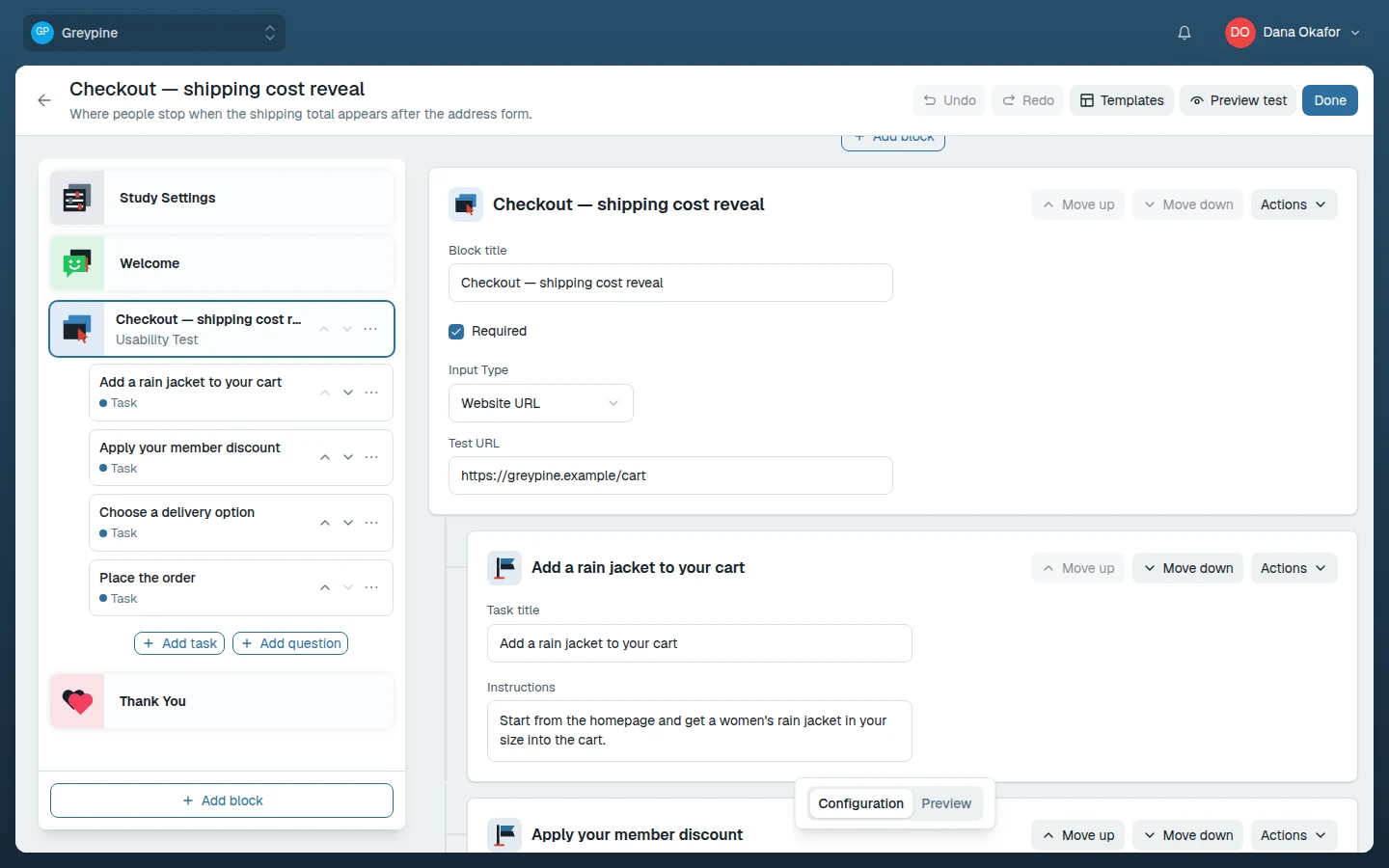
What testers test
The block needs a target — pick one of three Input Type options in the block's settings:
- Website URL — any live site or staging environment the tester's browser can reach. Enter it in Test URL, including
https://; a URL withouthttp://orhttps://can't be displayed to testers. - Figma Prototype — paste a Figma prototype link into Test URL.
- Embed code — raw embed HTML for targets that need it (for example a YouTube or Figma embed iframe); it's rendered directly during the test.
The target loads inside the test page, next to the task panel.
Tasks
Tasks are the steps testers work through, in order — choose Add task in the block to add one. Each task has a Task title (the instruction testers see) and optional Instructions for extra context. Tasks are "go do this" steps: find a product, complete a checkout, locate a setting. Testers can type an optional response as they finish a task, or skip it by giving a reason.
Anything you want testers to answer belongs in a follow-up question, not a task.
Write task titles as instructions, not questions, and avoid words that appear verbatim in the UI you're testing — "Find the report builder" tells the tester what label to scan for and ruins the signal.
Follow-up questions
A usability block can hold its own follow-up questions (the same types as survey questions) — choose Add question in the block. Questions and tasks can be interleaved in any order (task, question, task), so you can ask about a task straight after it. Use them for immediate impressions while the experience is fresh — a rating scale plus one open text field is a solid default.
Recording
Usability test blocks record the tester's screen and microphone — there's no recording setting to configure. Testers grant permissions once, up front, during session setup — recording then runs only during usability test blocks, and each block gets its own recording. Playback in results starts at the block, so you never scrub through a monolithic session video.
Validation
Launch is refused while the block has no title, no tasks, a task with no title, or a follow-up question with no text. It doesn't check the target, so make sure it works and preview the block. See configuration errors for the full reference.
Related docs
- Use study blocks
The building blocks of a study: usability tests, card sorts, surveys, and question blocks — and when to use each.
- The tester experience
Study links, My Tests, the welcome and setup screens, recording permissions, completing activities, and finishing a session.
- Review results, evidence, and recordings
Where session results live, how to read per-block responses, watch recordings, capture evidence, and export your results.