
Participants
The people who take your studies: where they come from and what the participants list shows.
The Participants page lists the testers who take your studies, with their study counts and completion history in one place.
Where participants come from
Participants are signed-in testers — typically workspace members with a Tester seat. The flow is:
- Invite the person to the workspace with a Tester seat (Manage Workspace → Members), or add them by email in a study's Select Testers dialog.
- Add them to a study (see Invite testers).
- Once the study is live, they get an email invitation and start the study from their My Tests (or from its public link, if you share one). Their finished sessions appear under the study's results and count toward their row in the participants list.
People who take a study through a public link without signing in aren't listed — their sessions appear only in the study's results.
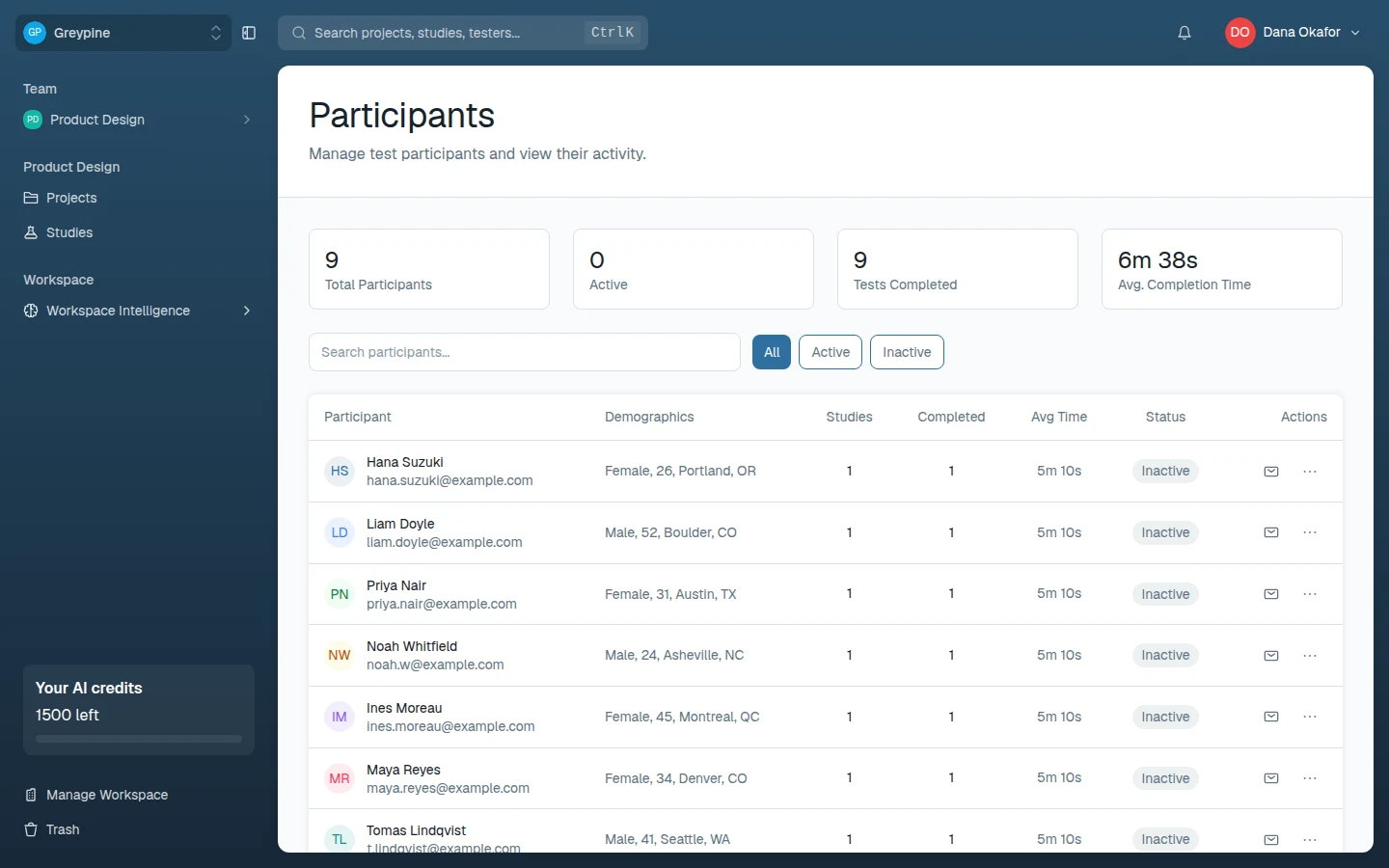
What the participants list shows
Summary tiles at the top count Total Participants, Active participants, and Tests Completed. Below them, each row shows the participant's name and email, Demographics, Studies (sessions started), Completed, Avg Time, and a status — Active if they were active in the last 14 days, otherwise Inactive.
Search by name or email, or filter to All, Active, or Inactive. Use it to spot your over-used regulars and to check whether a specific person completed the study you sent them.