
Workspace, teams, members, and settings
Structure your workspace with teams, manage member roles and seats, and review the audit log.
A workspace is the top-level container: it owns the projects, the members, and the plan. Most companies need exactly one.
Members and roles
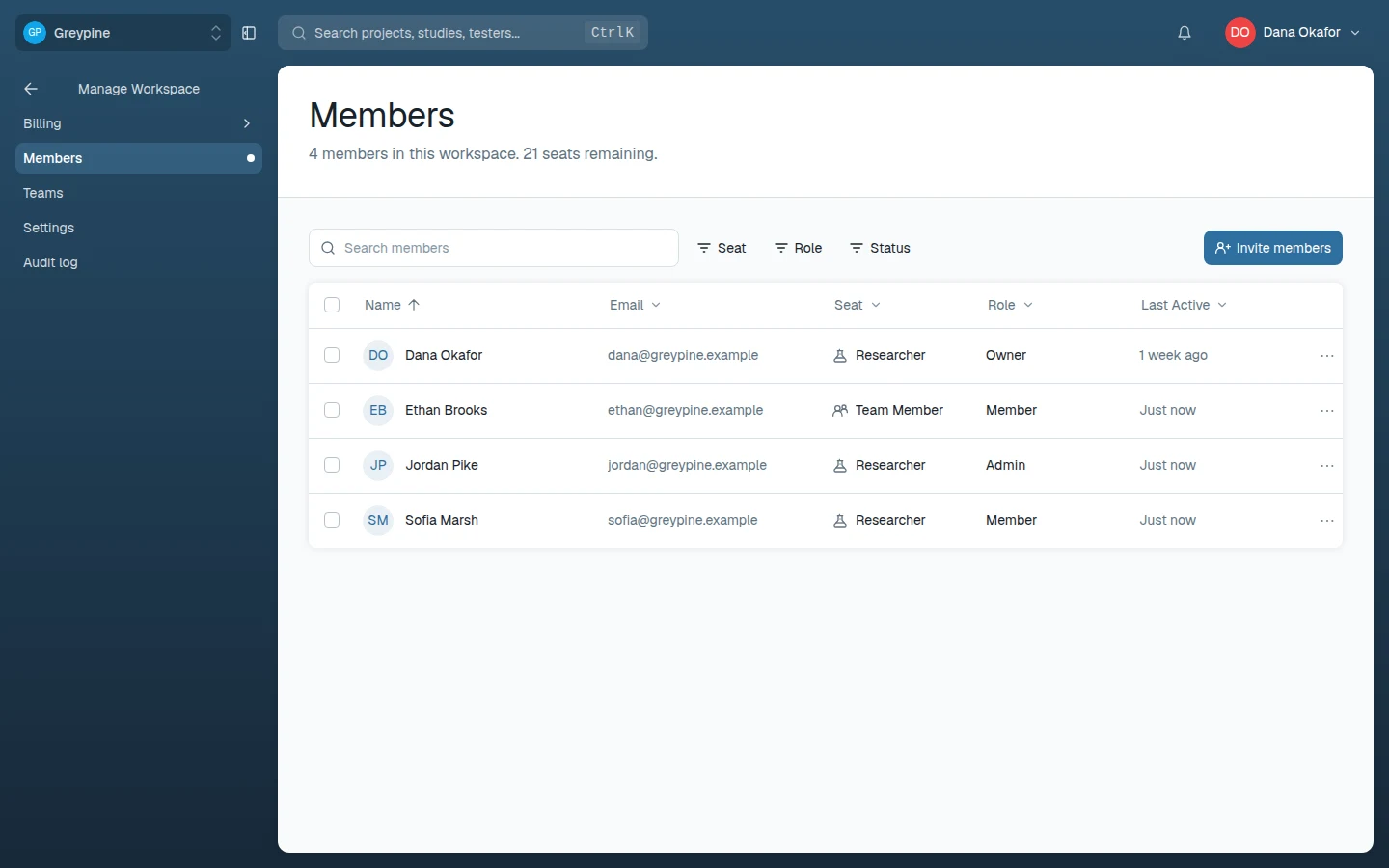
Every member has a role and a seat, set independently from Manage Workspace → Members (Assign role, Assign seat).
Roles:
- Admin — manages members, teams, billing, settings, and the audit log (everything under Manage Workspace), and can open and edit every project and folder in the workspace.
- Member — no access to Manage Workspace; sees the projects and folders shared with them.
The workspace's owner is listed as Owner and can't be demoted from admin.
Seats:
- Researcher — creates and edits projects and studies, and reviews results.
- Team Member — view-only: can see the research shared with them but can't create or edit.
- Tester — only takes studies; never sees research data.
Researcher seats come from your plan; Team Member and Tester seats are free. When every researcher seat is in use, inviting another researcher adds and bills a seat automatically — unless an admin has turned off Automatically add seats when full in workspace settings, in which case the invite is blocked until you add seats under Manage Workspace → Billing → Subscription or free one up (remove a researcher or change their seat). See Manage your subscription.
Inviting people
Admins invite from Manage Workspace → Members → Invite members, choosing the Seat type first. Roles are assigned after the person joins. Two ways to invite:
- Email — each address gets a single-use invitation that expires after 7 days. Invitations are matched by email address — the invitee must log in (or sign up) with the exact address the invitation was sent to, a detail worth repeating when someone "can't see the workspace". Pending invitations can be revoked from the members list.
- Join link — a reusable link for the chosen seat type; anyone with it can join. Regenerate link invalidates the old one.
With Allow Self-Signup on, people whose email matches one of the workspace's allowed email domains can join without an invitation.
Teams
Teams group projects and folders so members work within their own slice of the workspace. Create one under Manage Workspace → Teams (Add Team): name it, then choose who has access — Restricted (only the people you add), Workspace (all workspace members), or Anyone in this workspace (any member can view). Projects and folders in a team inherit the team's access, so use teams to mirror your org structure instead of managing access person by person. A member can have access to any number of teams, and removing someone from a team removes the access they had through that team — direct grants stay.
Teams are optional: switch off Use teams in this workspace on the Teams page and every member can see every project and folder (seat limits still apply). Turning teams off removes team assignments from all projects and folders, and turning them back on doesn't restore the old structure.
Settings
Team workspace settings (Manage Workspace → Settings) cover:
- General — workspace logo, name, and allowed email domains.
- Workspace Policies — Allow Self-Signup, Require Two-Factor Authentication (everyone, including you, must set up 2FA before they can use the workspace again), Allow External Testers (let testers take studies through a public link without signing in), and Automatically add seats when full.
- SAML single sign-on — on the Advanced Team and Enterprise plans, members on your verified domains sign in through your identity provider.
- Danger Zone — Delete Workspace permanently removes all projects, studies, insights, and member access, and cancels any active subscription.
A personal workspace's settings hold just its name. Personal settings — your profile, password, passkeys, two-factor authentication, email notifications, and AI study preferences — live in your account settings instead.
Audit log
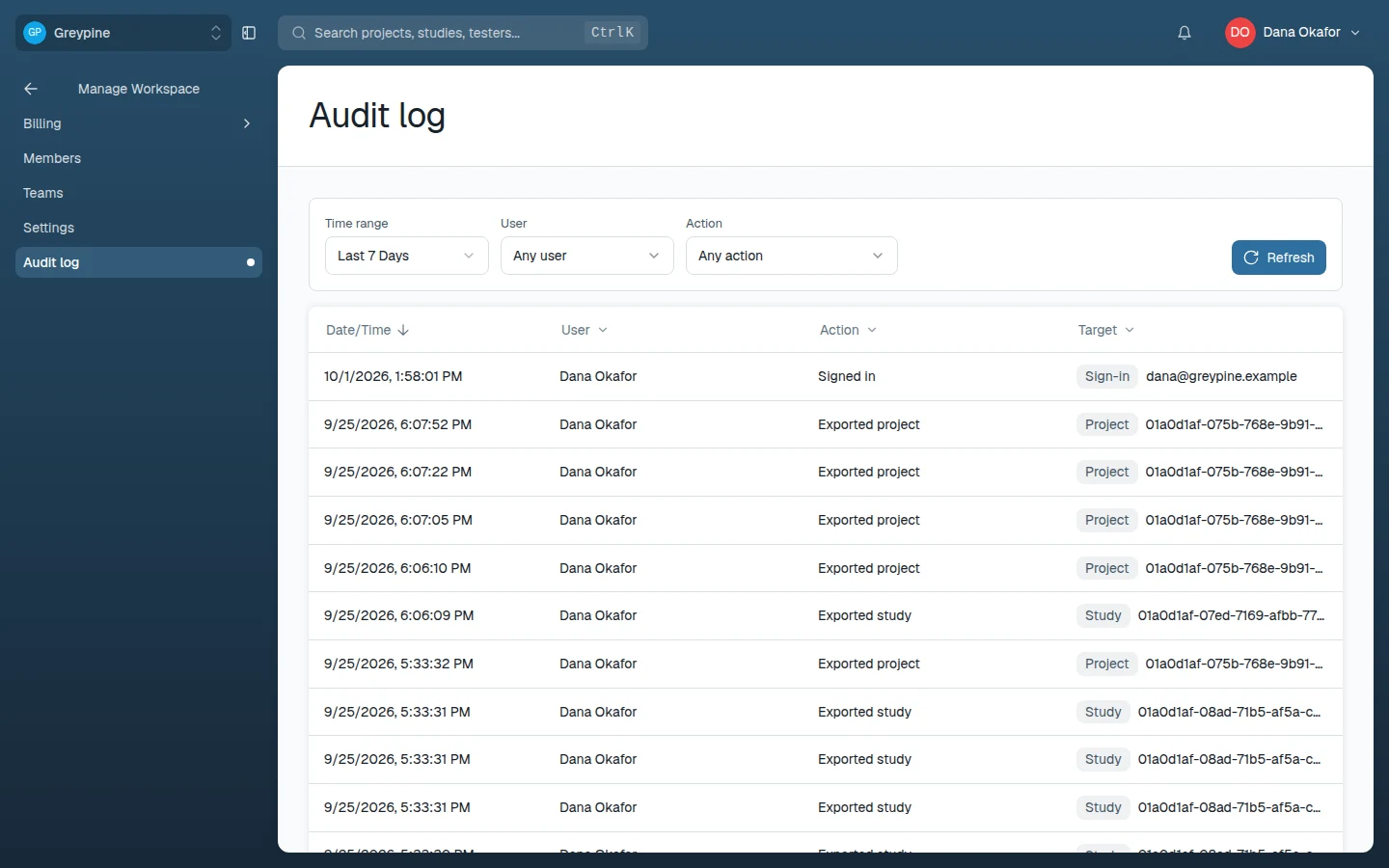
Admins can review the audit log under Manage Workspace → Audit log: a chronological record of workspace events — invitations, membership, role and seat changes, team permissions, workspace settings and SSO changes, plan changes, project and study creation, edits, exports, and deletions, and Workspace Intelligence changes — plus your own sign-in and account-security events. Filter by User, Action, and Time range (the default is the last 7 days), and open an event to see what changed. View audit logs on a member's row in Members jumps straight to their history. Events are kept for 90 days. Use it to answer "who deleted that project" and "when did this person's access change" without guesswork.
Related docs
- Projects and folders
Create projects, group them into folders, control who can see them, and clean up with trash and restore.
- Billing and plans
How plans, seats, and billing terms work, and where to change or cancel your subscription.
- Create an account and log in
Sign up for CustomTester, pick a plan, and sign in — including two-factor, passkeys, and switching between multiple accounts.