
Preview, launch, and share studies
Try your study as a tester, launch it when it's ready, invite testers, and end it when you have enough sessions.
Study lifecycle
A study moves through a fixed set of statuses, shown as a badge on the study page:
| Status | Testers can start sessions | You can edit structure |
|---|---|---|
| Draft | No | Yes — freely |
| Live | Yes | Limited — see below |
| Completed | No | No — results stay available |
Preview
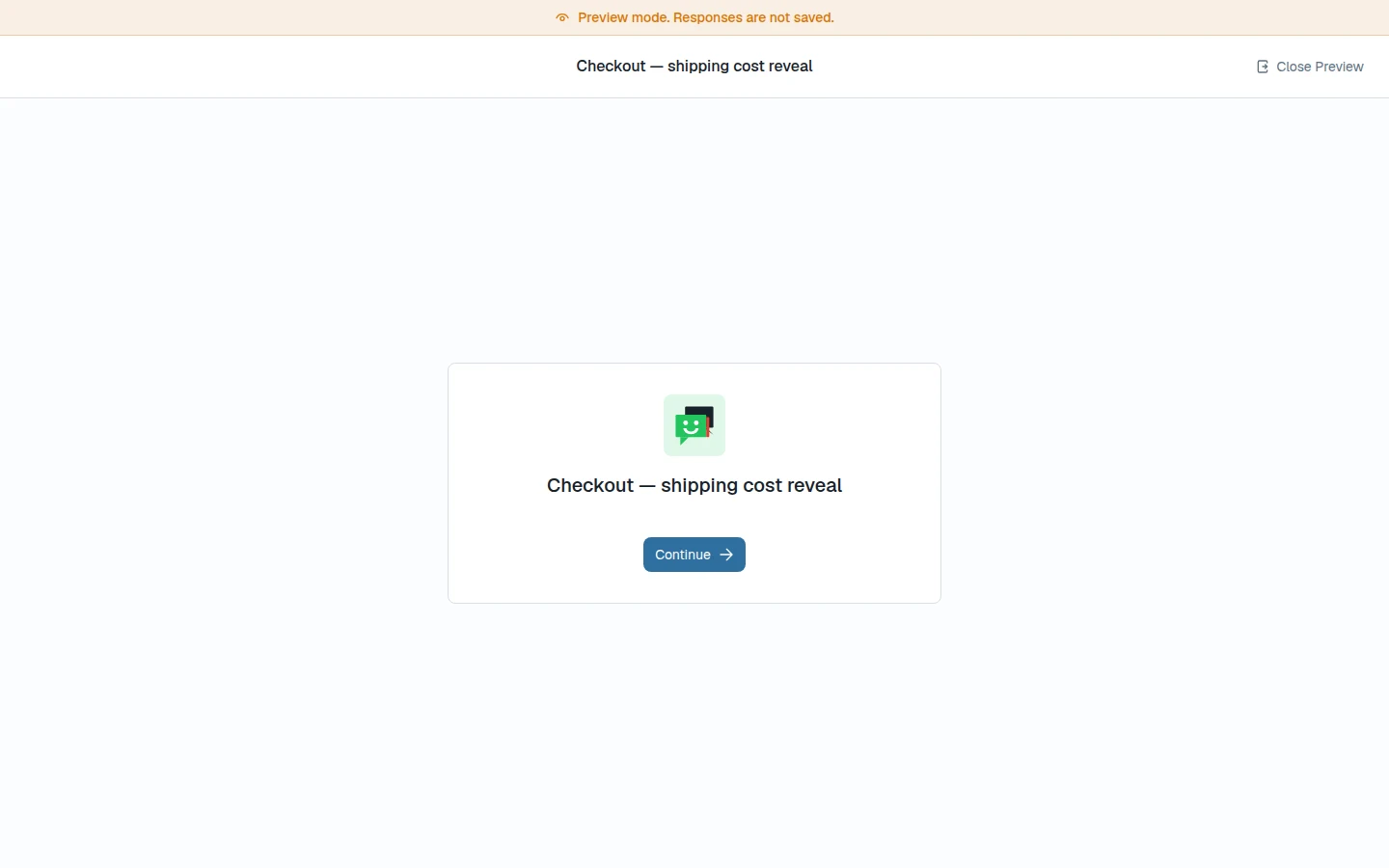
Choose Preview test in the builder toolbar (it's available once the study has at least one block). Preview opens in its own window and runs the study as a tester will see it — welcome screen, blocks, and thank-you screen — without saving any responses and without the recording setup step. Use it to catch confusing wording, broken prototype links, and missing tasks before anyone real sees them.
Launch
Choose Launch Test on the study page to move a draft to live. A study needs at least one block, every block filled in, and either an invited tester or the public link turned on, before it can launch — see the configuration errors reference. You can watch results come in while the study runs on the Study Results, Sessions, and Evidence tabs.
Once a study is live, Edit opens the builder in live mode: you can still edit text such as titles, descriptions, and help text, but structural changes — adding, removing, or reordering blocks and tasks — are disabled, because changing tasks mid-study would make results incomparable.
Invite testers
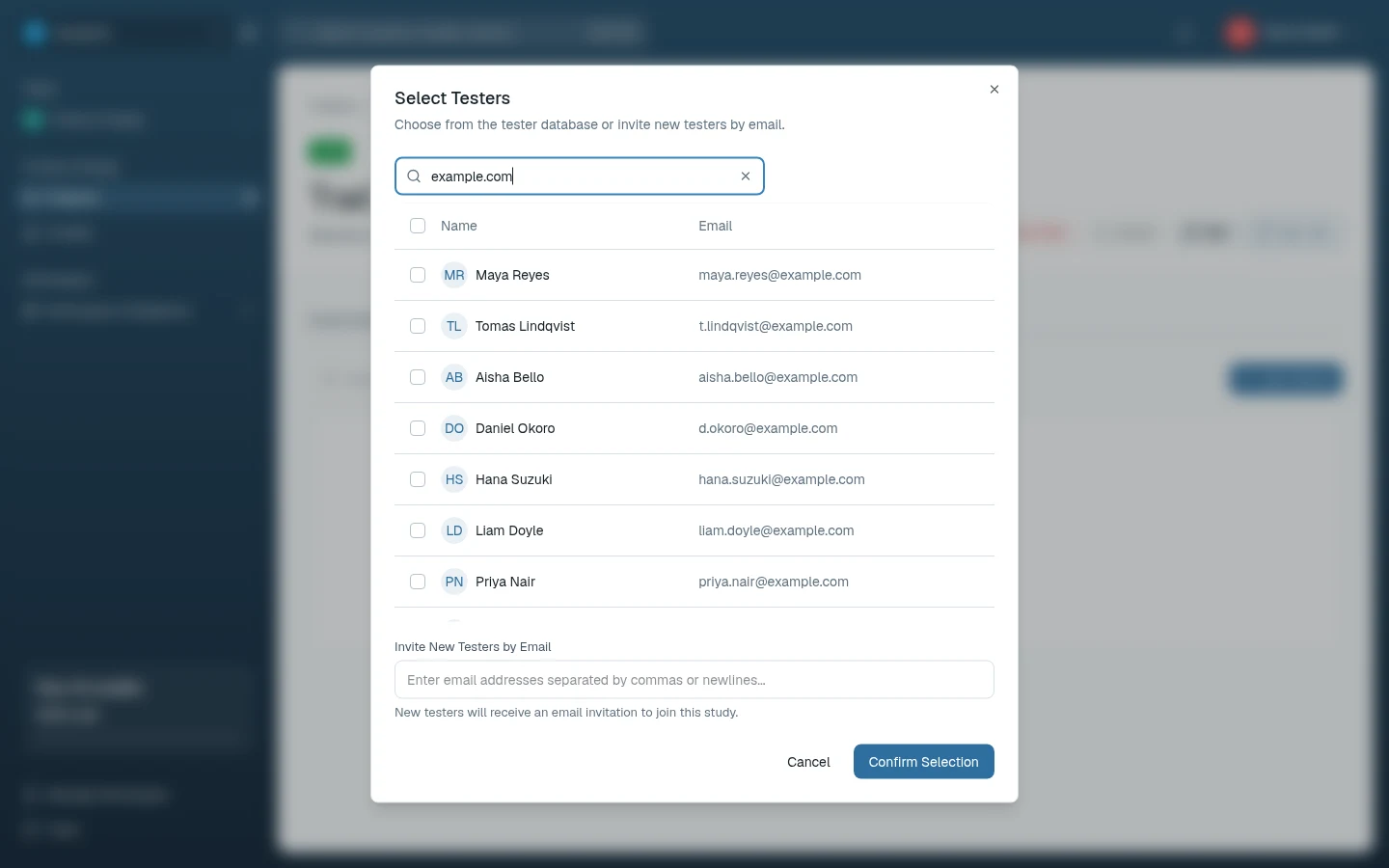
- Add Testers — opens Select Testers, where you pick people from the tester database or enter email addresses under Invite New Testers by Email. They're listed as Invited on the study's Sessions tab. When the study launches (or right away, if it's already live), each tester gets an email invitation, and those with an account also get a New test assigned notification. The study waits under their My Tests, and they start it there after logging in with the invited address. Testers without an account create one with that address first. Inviting doesn't need the public link.
- Tester seats — workspace members with a tester seat can be assigned studies without taking up a full researcher seat. See Participants.
Share a public link
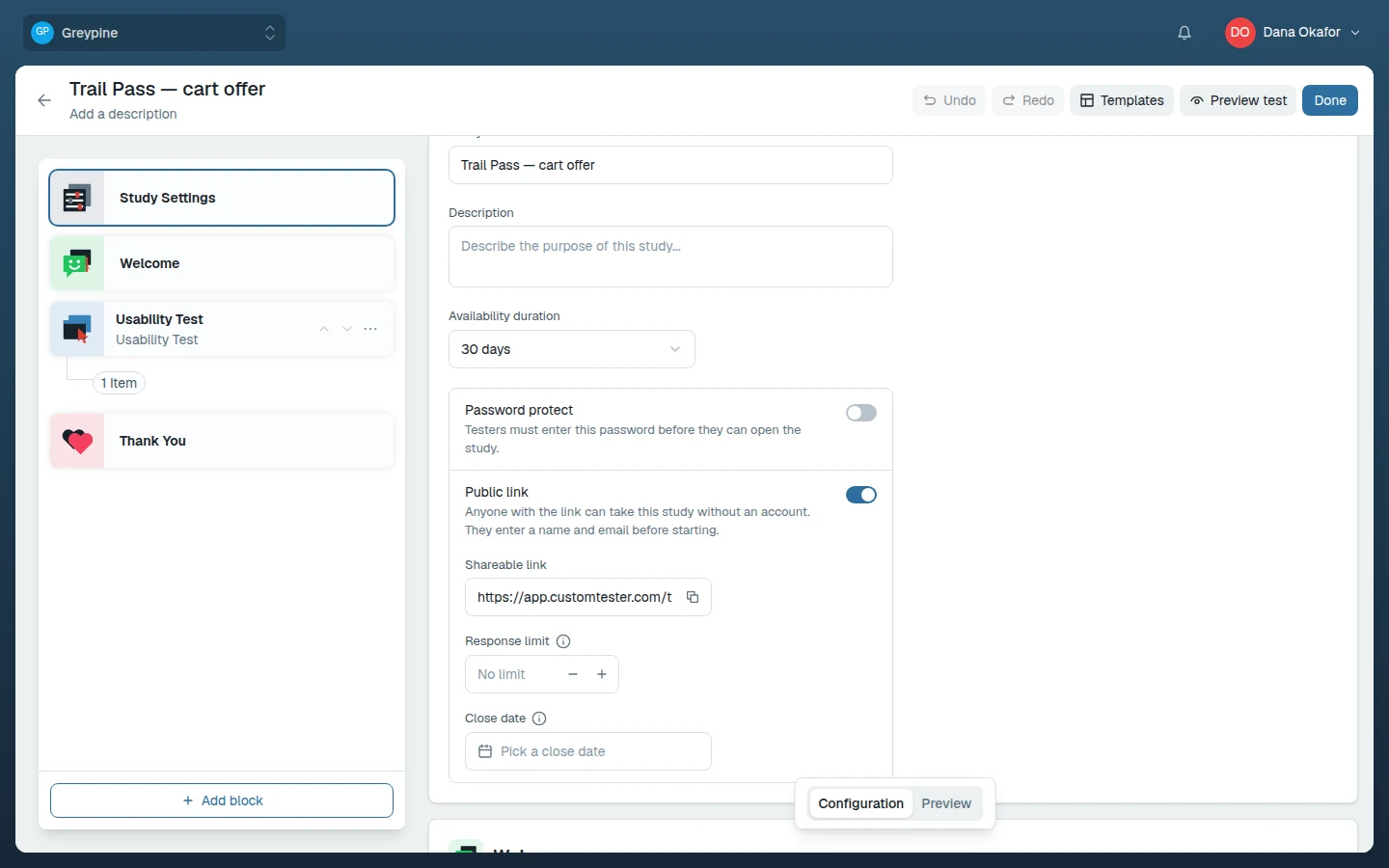
To recruit without accounts, turn on Public link in the builder's Study Settings and copy the Shareable link. Anyone with the link can take the study once it's live; they enter a name and email before starting. Optional controls in the same panel:
- Password protect — testers must enter the password before they can open the study.
- Response limit — the study completes automatically once this many testers have finished.
- Close date (or Availability duration) — the link stops accepting responses on that date and the study completes automatically.
End a study
When you have enough sessions, choose End Test on the study page and confirm. Ending stops collecting new responses — testers who haven't started can no longer take part — and the study moves to Completed; existing results stay available. An ended study can't be reopened — clone it instead if you need another round.
Related docs
- Create and configure a study
Set up a new study inside a project, name it, and arrange its blocks in the study builder.
- The tester experience
Study links, My Tests, the welcome and setup screens, recording permissions, completing activities, and finishing a session.
- Review results, evidence, and recordings
Where session results live, how to read per-block responses, watch recordings, capture evidence, and export your results.