
Configuration errors reference
What stops a study from launching and how to fix it — plus save failures and recording setup.
Before a study goes live, CustomTester checks that it has something to take, that every block has the content testers need, and that someone can take it. If a check fails, Launch Test either stays disabled or shows the reason above the study page.
The launch checks
| Issue | Message | Fix |
|---|---|---|
| No blocks | Add at least one activity block before launching this study. | Open the builder and add a block |
| Blocks missing content | 2 blocks are missing content testers need, such as a title, task or question. Fill them in before launching. | Choose Review Blocks to open the builder with each problem block badged and its empty fields highlighted |
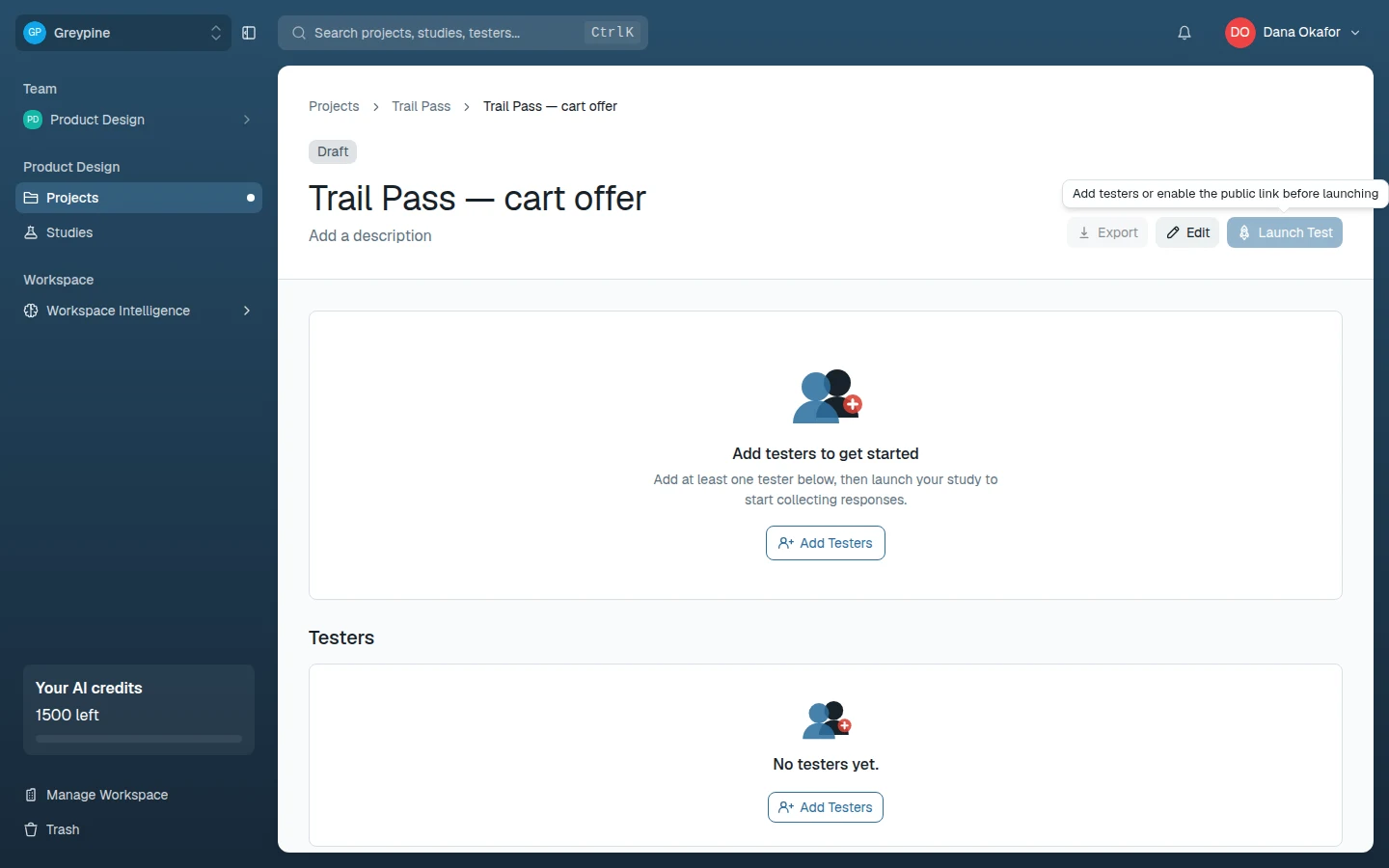
| No testers and no public link | Add at least one tester or enable the public link before launching this study. | Choose Add Testers, or turn on Public link in the builder's Study Settings |
While a draft has neither testers nor a public link, Launch Test is disabled and its tooltip reads "Add testers or enable the public link before launching".
What counts as missing content
| Block | Launch is refused when |
|---|---|
| Any block | The block title is blank |
| Usability test | It has no tasks, any task has no title, or a follow-up question has no text |
| Card sort | No card has a label |
| Survey | It has no questions, or any question has no text |
| Question block | The question text is blank |
The checks don't cover everything, such as whether a usability test's target URL or Figma link works. Preview the study end to end before you launch.
Save failures
The builder auto-saves shortly after every change. If the save indicator shows Unsaved changes:
- Check your connection — this is almost always a network drop.
- Keep the tab open. Your edits are still in the browser.
- Make another small edit — each change retries the save.
Recording permission setup
Recording problems surface on the tester's side, not in the builder. If a study contains a usability test block, testers share their microphone and screen once during session setup — until both are granted, they can't start the study.
- Previously denied browser permissions must be re-allowed in the browser's site settings; the site cannot re-prompt.
- On macOS, screen recording additionally requires the browser to have Screen Recording permission in System Settings → Privacy & Security.
- Another app holding the microphone (usually video-call software) blocks it — the tester sees that the microphone is in use and needs to close that app.
The same checklist, written for testers, is in Troubleshooting.
Related docs
- Create and configure a study
Set up a new study inside a project, name it, and arrange its blocks in the study builder.
- Use study blocks
The building blocks of a study: usability tests, card sorts, surveys, and question blocks — and when to use each.
- Troubleshooting and FAQ
Fixes for the most common problems: login issues, recording permissions, missing studies, and results that don't appear.