
Create an account and log in
Sign up for CustomTester, pick a plan, and sign in — including two-factor, passkeys, and switching between multiple accounts.
CustomTester uses one account for everything: the researcher app, the tester experience, and the community forum all share the same login. Once you sign in to the app you are signed in everywhere.
Create an account
- Open the CustomTester login page and choose the Sign up tab.
- Enter your first name, last name, and email address, then create a password. If your sign-in page offers Google, GitHub, or Microsoft, you can continue with that account instead of a password.
- Choose your workspace type: Personal (for individual use) or Team (for teams and organizations).
- Pick a plan. Personal workspaces can start on the free Starter plan and upgrade later — nothing here is permanent; see Plans and pricing. A team workspace also asks for a workspace name and URL.
- Choose Create Account, then open the verification link we email you. Your account can't log in until the email is verified; if you picked a paid plan, Continue to payment finishes checkout.
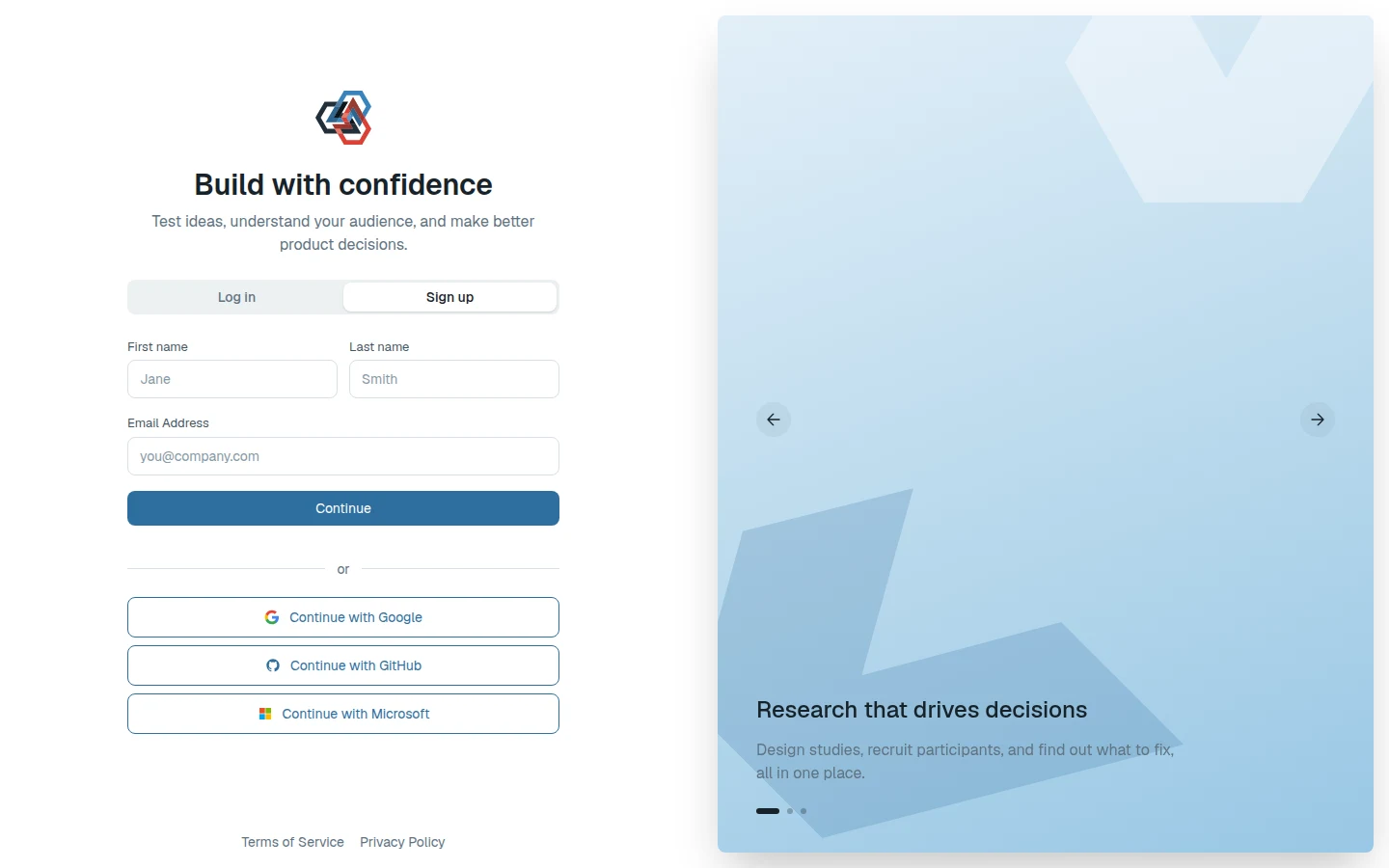
If you were invited to a workspace by email, sign up with the address the invitation was sent to — an email invitation only works for that address, and a different one creates a fresh, empty account instead. A shared join link works with any account.
Log in
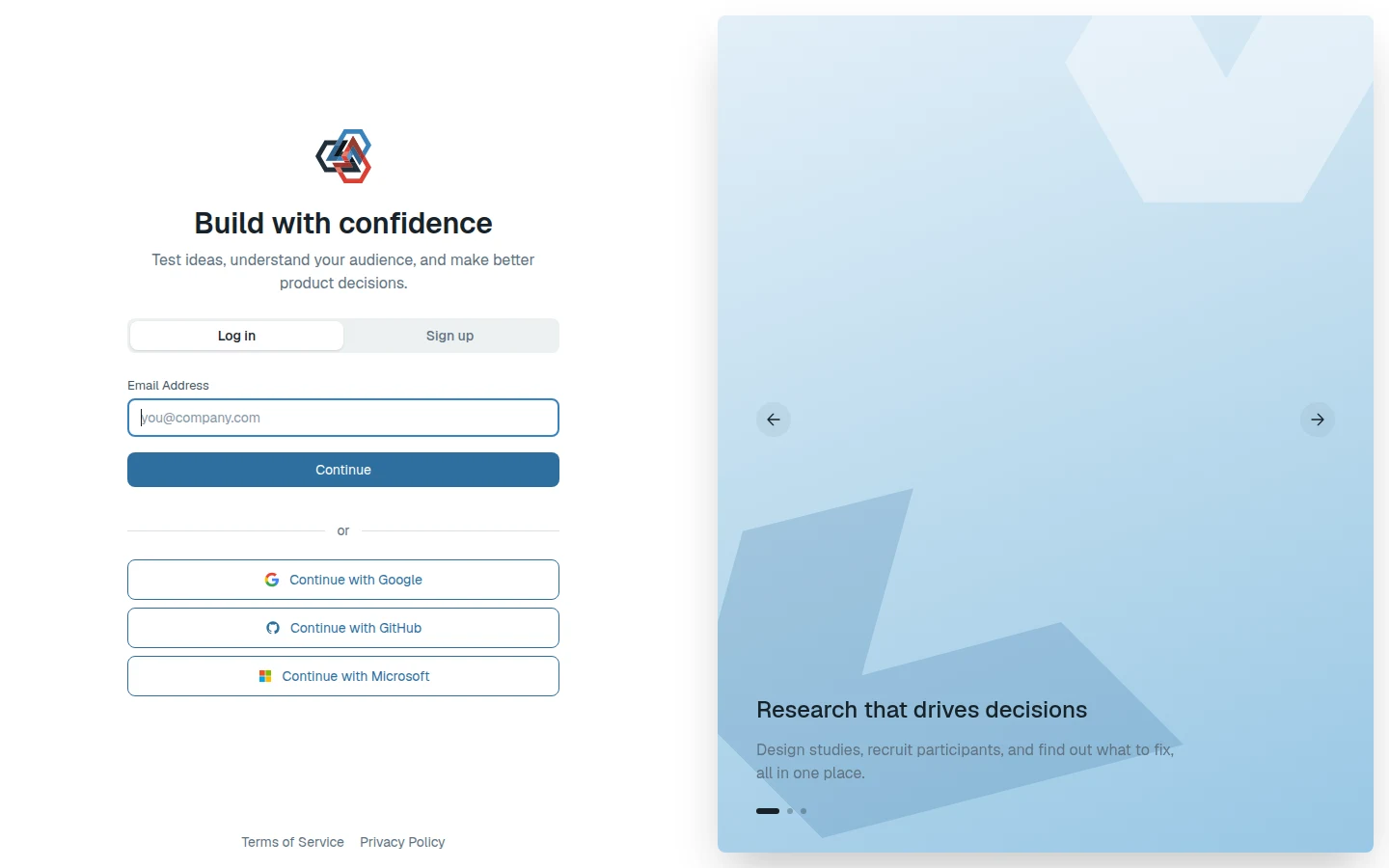
Enter your email on the login page and choose Continue. The next step depends on how your account signs in: your password, your passkey, your social provider, or your organization's single sign-on. If you've turned on two-factor authentication, you're asked for the 6-digit code from your authenticator app after your password.
Account security
Open Settings from the user menu. The Security tab covers login security:
- Two-factor authentication — a one-time code from an authenticator app on top of your password. Set it up, and store the backup codes somewhere that isn't the same device. A workspace can require two-factor; if yours does, you're asked to set it up before you can continue.
- Passkeys — sign in with your device's biometrics or a security key instead of a password. You can register several (laptop, phone) and rename or delete any of them later.
- Connected accounts — connect or disconnect Google, GitHub, or Microsoft sign-in. You can't remove your only way of signing in.
Delete Account lives in the Danger Zone on the Profile tab. Deleting an account is permanent. If you're the only active admin of a workspace, you're asked to promote another member first.
Use more than one account
You can be signed in to several accounts at once — useful if you keep separate work and client accounts. Use Switch Account in the user menu to jump between them without logging out, or Add another account to sign in to one more.
Trouble logging in?
- Double-check the email address — accounts are matched by email.
- Use Forgot password? on the password step if you have forgotten your password. The reset link expires after an hour.
- Haven't verified your email yet? Use Send a new link on the login page — verification links are single-use and expire after 24 hours.
- If your account was created through a workspace invitation, use the email address the invitation was sent to.
- More fixes in Troubleshooting.